
AI Scene Detection for Gameplay: Auto-Cut Gaming Footage in 2026
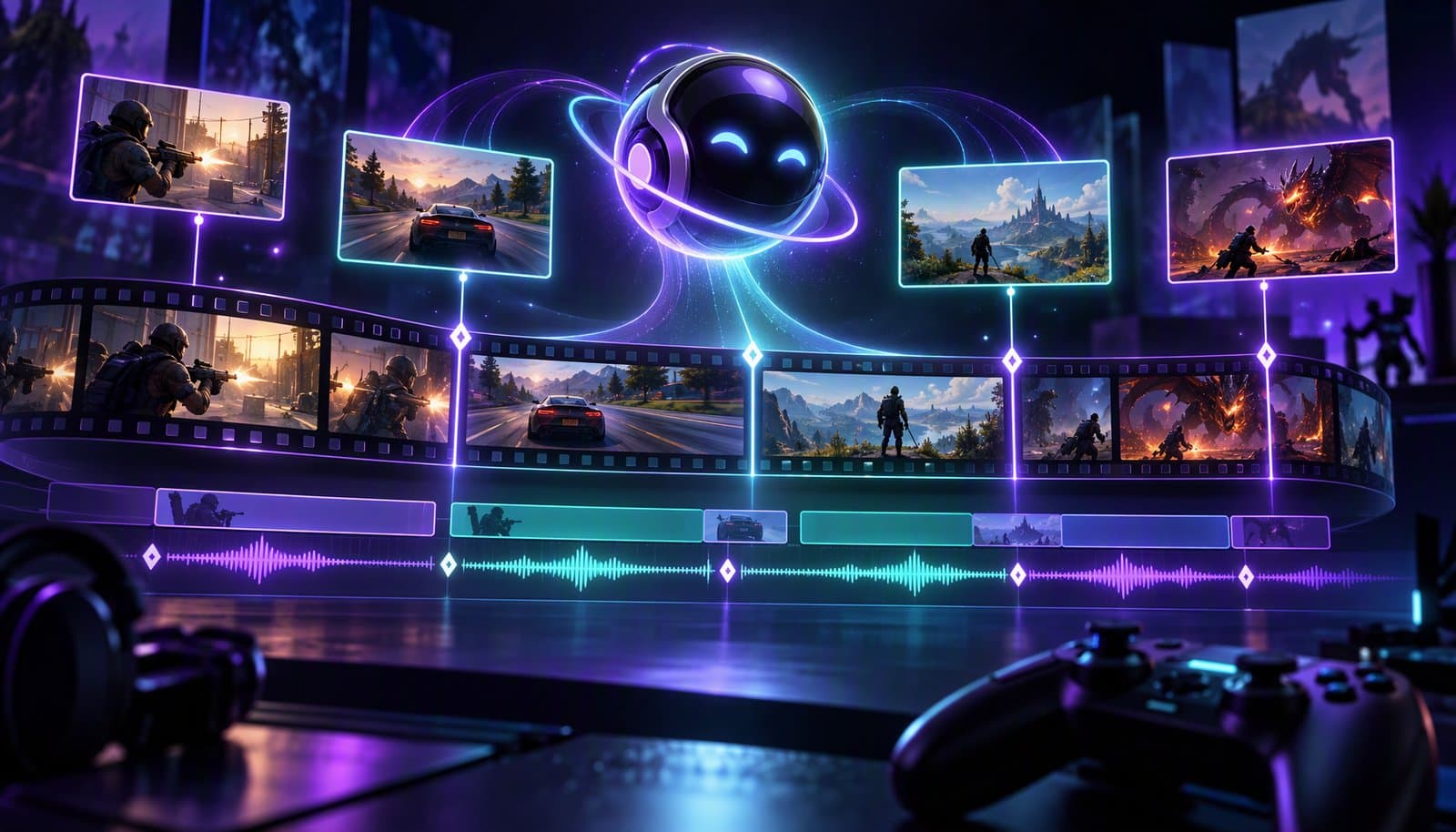
AI scene detection for gameplay means software segments a raw gaming session into usable moments - rounds, fights, menus, black screens, loading screens, reactions and potential highlights - so you can auto-cut gameplay footage instead of scrubbing for hours. In 2026, Loopdesk is strongest for directed gameplay cleanup, while traditional editors mostly detect existing cuts.
This is the deep dive behind our broader AI video editing for gamers guide. If your search was "ai video editing software automatic scene detection gameplay" or the more specific "automate gameplay edits black screen fade helicopter sound", the practical answer is: describe the scene or sound you want removed, found or clipped, then review the flags before export.
What is AI scene detection in gameplay footage?
AI scene detection in gameplay footage is the process of splitting a long recording into meaningful sections by reading visual changes, audio changes and pacing shifts. In games, that can mean rounds, menus, loading screens, deaths, cutscenes, inventory time, scoreboards, quiet travel, fights and moments that deserve a highlight clip.
Traditional scene detection started as shot detection: find where one camera cut ends and another begins. That still matters, but gameplay needs a wider definition. A two-hour session may contain no camera cuts at all, yet it is full of scenes from an editor's point of view: queue, match start, first fight, death screen, lobby, next match, clutch, menu, loading screen.
For creators, the value is what the map unlocks. Once the session is segmented, an AI video editor can follow instructions like "remove every loading screen," "tighten dead air," or "make vertical clips from the best kill streaks." That is why scene detection powers silence removal, chapters and highlight clips.
How does AI detect kills, rounds, and highlights in gameplay?
AI detects gameplay moments by combining visual cues, audio cues and transcript context, then grouping them into likely scenes or highlights. It may notice scoreboards, HUD changes, kill feeds, round transitions, gunfire, announcer lines, streamer reactions and sudden energy changes, but you should not assume every game-specific event is perfectly recognized.
The most reliable signals are the ones games make obvious:
- Visual cues: scoreboard overlays, victory and defeat screens, round timers, respawn screens, kill feed movement, damage flashes, objective markers, menu layouts and scene brightness shifts.
- Audio cues: gunfire, explosions, announcer phrases, crowd noise, helicopter sounds, boss music, death sounds, kill confirmations and mic reactions.
- Speech cues: you saying "that's the clip," "one more," "no way," "he's behind us," or explaining what just happened.
- Pacing cues: long silence, repeated walking, downtime after a death, sudden bursts of action or a jump from quiet to loud.
A good agentic workflow treats these as evidence, not magic. Loopdesk segments footage into scenes and powers chapters and highlights from that understanding, but you should still instruct the outcome plainly: "find the kill streaks and flag them as shorts." A shooter HUD, RPG boss phase and fighting-game knockout all look different; human-language direction matters.
Detecting black screens, loading screens, and fades automatically
Black screens, loading screens and fades are some of the easiest gameplay sections to describe because they are visual patterns. Tell the agent to cut them, and it can scan for dark frames, repeated loading layouts, menu pauses and fade transitions across the whole session instead of forcing you to razor-cut each one.
This is the cleanup most gamers feel immediately: console capture fades, black frames from scene switches, loading screens, lobby waits, death screens and pause menus. In a manual editor, you scrub until the screen changes and hope you did not leave dead frames. In Loopdesk, use an outcome prompt: "cut every black screen and loading screen, remove the fade holds, and leave a clean join where the next playable moment begins."
Be specific if darkness is intentional. A horror game may use black frames as tension, and a cinematic fade may set up the next moment. An agentic video editor gives you a reviewable first pass, not a blind delete.
If the video is part of a larger shorts workflow, combine this with aspect ratio reframing: "after removing black screens and loading screens, make three vertical clips from the strongest reactions." That keeps cleanup and distribution in the same pass.
Audio-event detection: cutting on the sound
Audio-event detection means using a distinctive sound as the edit target: a helicopter entering, a gunshot, a kill sound, an announcer call, a crowd swell or your mic reaction. Instead of cutting on a visible frame, you ask the agent to find the sound and cut to it or mark it as a highlight.
This is the "helicopter sound" case. The viewer may not care about the thirty seconds before the helicopter arrives. They care about the instant the sound changes the scene. A useful instruction is: "find the moment the helicopter sound starts, cut the buildup to two seconds before it, and mark that section as a highlight."
The same pattern works for gunshots that start fights, announcer reactions after wins, crowd swells, boss music drops and mic reactions after kill sounds. Audio cues are especially helpful when the visual frame is misleading: the helicopter can be off-screen, and a teammate can shout before the kill feed updates.
Do not treat this as a guaranteed forensic detector for every sound effect in every game. Treat it as an instruction to the AI agent: listen for the cue, find candidates, then show you the flagged scenes. That is still a major speedup over scrubbing a waveform by eye.
Which AI video editing software has automatic scene detection for gameplay?
The honest answer is that most editors do some kind of detection, but not all detection means gameplay understanding. Premiere Pro and DaVinci Resolve can detect cuts in already-edited footage; auto-clippers score highlights from transcript and audio energy; Loopdesk is built for directed scene cleanup, highlights and clips from plain-English instructions.
| Tool | Scene detection | Black-screen and loading removal | Audio-cue detection | Auto-highlights | Vertical clips | Price mid-2026 |
|---|---|---|---|---|---|---|
| Loopdesk | Yes - segments footage into scenes for chapters and clips | Instruct the agent to cut black screens, fades and loading screens | Instruct the agent to find sounds or reactions and flag candidates | Yes - AI highlight clips | Yes - 16:9 to 9:16 and 1:1 auto-reframe | Creator Lite $19/mo or $15/mo annual; no free plan |
| Descript | Transcript and scene-based editing for spoken video | Manual or transcript-assisted cleanup, not gameplay-specific | Speech and audio tools, not a game-event detector | Clips from transcript; weaker than dedicated clippers | Yes | Free tier; Hobbyist $24/mo or $16 annual |
| CapCut | Assistive AI, templates and manual editing | Manual cuts with helpful visual editing tools | Auto captions and audio tools, not dedicated event detection | Templates and assistive clips | Yes | Free; Pro varies by region/platform; 4K largely behind Pro |
| Premiere Pro | Scene Edit Detection for detecting cuts in rendered video | Manual editing after detection | Audio tools and transcription, not gameplay event detection | No dedicated auto-highlights | Manual or assisted | $22.99/mo |
| DaVinci Resolve | Scene Cut Detection for detecting existing cuts | Manual editing after detection | Fairlight audio tools, not gameplay event detection | No dedicated auto-highlights | Manual | Free; Studio $295 |
| Opus Clip | Scores segments in long videos | Not built for gameplay cleanup | Uses transcript and energy signals, not specific game sounds | Yes - virality scoring | Yes | Free tier; from $15/mo |
| Filmora | AI-assisted editing and scene tools | Mostly manual cleanup | Audio tools, not dedicated gameplay event detection | Some AI highlight and template workflows | Yes | From $49.99/yr |
Full disclosure: Loopdesk is our product, so read that row accordingly - the rest of the table plays it straight. The key distinction is whether the tool can act on an instruction like "remove black screens, tighten dead air and clip every kill streak vertical." For generic shorts, compare best AI clipping tools 2026. For YouTube, read best AI video editor for YouTube.
The Loopdesk workflow for gameplay
Loopdesk's gameplay workflow is simple: upload the session, describe the edit, review the flagged scenes, then export the main video and clips. Aura, Loopdesk's AI agent, executes the multi-step cleanup in the browser while leaving every cut editable on a professional timeline.
Step 1: Upload the session
Start with the raw recording: a long OBS capture, stream export, console recording or cloud file. Loopdesk runs 100% in the browser with WebGPU and WebCodecs, so there is no install, and it supports cloud import from Drive and Dropbox.
On ingest, the agent transcribes commentary, segments footage into scenes and prepares cleanup, so the session is no longer one giant block.
Step 2: Describe the edit in plain English
Give the agent a specific instruction with the sections you want removed, shortened or clipped:
- "cut every black screen and loading screen, tighten dead air to under 1.5 seconds, and clip every kill streak as a vertical short"
- "remove menus and queue time, keep every fight, and caption the funniest mic reactions"
- "find the moments where the announcer or crowd reacts, then make three vertical clips with the reaction as the hook"
- "cut to two seconds before each helicopter sound and flag those moments for review"
The more concrete the cue, the better. Name what appears on screen, what you hear, and what output you want.
Step 3: Review flagged scenes
Review the scene list, cuts and highlight candidates before export. This is where you correct taste: a quiet moment may be funny, a loading screen may contain commentary worth keeping, or a kill may matter less than the reaction after it. Every cut remains editable on the timeline.
Step 4: Export the video plus clips
Export the long edit, the vertical clips or both. Loopdesk includes unlimited watermark-free 1080p and 4K exports on every plan, plus commercial use. For a recurring channel, this is where the workflow compounds: one gaming session becomes a YouTube upload and several shorts.
For a backlog, run the same instruction as a batch editing job. The prompt stays the same; the review queue changes.
Prompts that work
Good prompts tell the AI what to detect, how aggressively to cut and what to export. Bad prompts say "make this better" and force the agent to guess your channel's pacing. For gameplay, describe visible states, sounds and audience value.
Use these as starting points:
- "Remove every black screen, fade hold, loading screen and queue screen. Keep the first playable moment after each one."
- "Tighten dead air to under 1.5 seconds unless I am building suspense or explaining strategy."
- "Find each kill streak, include two seconds before the first kill, and export vertical clips with captions."
- "Find the helicopter sound, cut to the moment it starts, and keep the next twenty seconds as a highlight candidate."
- "Cut inventory management unless I explain a decision or react to something funny."
- "Make a YouTube edit that keeps fights and commentary, then export five Shorts from the best reactions."
The pattern is event, rule, output. Event: black screen, kill streak, helicopter sound. Rule: cut, tighten, keep, flag. Output: main video, chapter, highlight, vertical short. For distribution, pair clips with repurposing long-form video into shorts.
Frequently Asked Questions
What is "AI video editing software automatic scene detection gameplay"?
It is software that maps gameplay into scenes such as rounds, fights, menus, loading screens and highlights. Loopdesk can segment footage for chapters and clips, while traditional editors often detect only existing cuts in rendered video.
Can AI automate gameplay edits like black-screen fades and the "helicopter sound" cue?
Yes, if you phrase it as an instruction: cut black screens and fades, then find the helicopter sound and flag or cut to that moment. Treat sound detection as candidate finding you review, not a perfect named feature.
How do I auto cut gameplay footage?
Upload the recording, tell an AI editor which sections to remove or keep, review the flagged scenes, then export. A strong prompt is: cut loading screens, tighten dead air, keep fights and export kill streaks as vertical clips.
What is the best AI gameplay editor for scene detection?
Loopdesk is best when you want directed gameplay cleanup from plain English: scenes, dead air, black screens, highlights, vertical clips and captions. Premiere and Resolve are better for manual professional editing, not automatic gameplay events.
Can AI detect kill feeds automatically?
AI can use kill feeds as a visual cue, but you should not assume universal game-specific recognition. Ask for the outcome instead: find kill streaks, flag likely highlights and let you review every candidate on the timeline.
Can AI remove loading screens from gameplay videos?
Yes. Describe the visual pattern clearly: remove black screens, loading screens, lobby waits and fade holds. The agent can scan the recording for matching sections and cut them, while you review anything that should stay.
Stop scrubbing the whole session. Try Loopdesk - describe the gameplay edit, review the scenes, and export the video plus clips.