
AI Video Editing for Gamers: Auto-Cut Gameplay, Remove Dead Air & Sync Sound
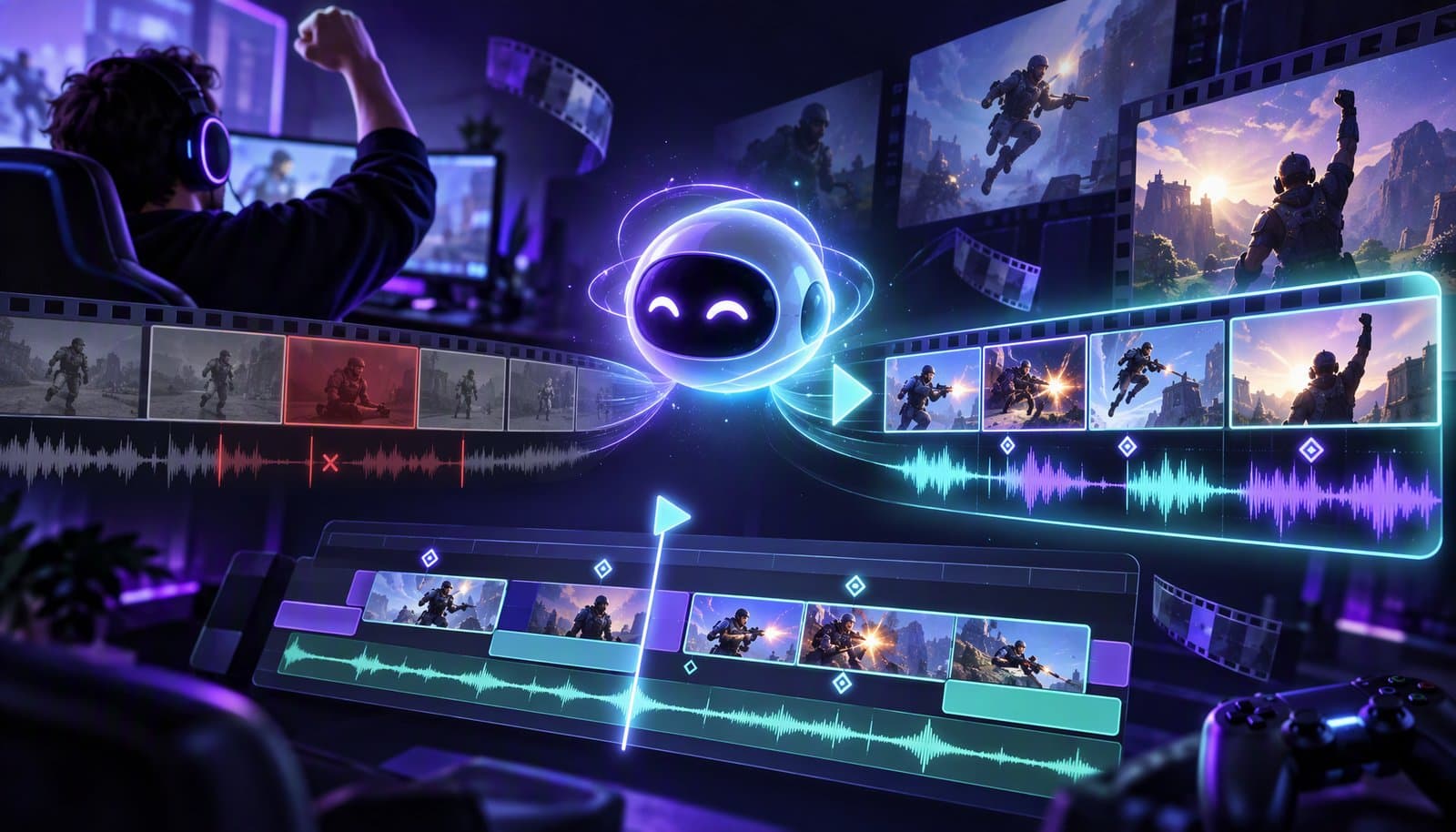
AI video editing for gamers means describing the edit instead of scrubbing it: auto-cut the dead air between fights, remove loading screens and black frames, balance your mic against game audio, and clip the best moments into shorts — from one instruction. For creators sitting on hours of raw gameplay per session, it's the difference between publishing weekly and publishing daily.
Gaming content has the worst editing ratio in the creator economy: a three-hour session might contain twelve publishable minutes, and finding them means scrubbing all three hours. This guide covers what AI can actually automate in a gameplay edit, the workflow, and the prompts that do the work. If the category is new to you, our guide to AI video editing explains the transcription and scene analysis everything below relies on.
Why Gameplay Footage Is Brutal to Edit by Hand
Four properties make gaming footage uniquely tedious:
- Extreme raw-to-final ratios. Sessions run for hours; videos run for minutes. Most of the edit is deletion.
- Dead time is structural. Queues, lobbies, loading screens, death screens, inventory management, walking between objectives — the game itself generates the padding.
- Two competing audio tracks. Game audio and mic commentary are recorded at different levels, and the balance that felt right live rarely survives playback.
- Every session repeats the problem. Unlike a one-off project, gameplay editing is a treadmill: the same cleanup, every upload.
Traditional editors give you better scissors. Agentic editing changes the job: the AI watches the footage so you don't have to.
What AI Can Automate in a Gameplay Edit
Everything below starts with the AI reading the session for signals a human would otherwise scrub for. This is what a gameplay-aware editor detects, and what it does with each one:
| Signal in the footage | How the AI detects it | What the edit does | Prompt that triggers it |
|---|---|---|---|
| Round, match, or level change | Scene detection: HUD reset, scoreboard, announcer call, abrupt visual change | Splits the session into scenes; drives chapters | "Split this into rounds" |
| Black screen or fade to black | Frame luminance drops across the whole image for more than a moment | Cuts the gap between matches | "Remove anything that's just a black screen" |
| Loading screen | Static frame or repeated loading UI pattern | Removed across the whole file, not one scrub at a time | "Cut the loading screens" |
| Menus, lobby, inventory | Visual understanding of UI screens with no gameplay motion | Trimmed or shortened | "Cut the menus and lobby time" |
| Dead air in commentary | Silence detection on the mic track | Tightened between fights | "Tighten everything between fights" |
| Loud audio event (gunfire, explosion, helicopter, announcer) | Audio energy spike against the session's baseline | Marks a highlight candidate | "Clip every fight where the audio spikes" |
| Commentary reaction | Speech energy and pitch jump on the mic track | Highlight candidate that keeps your reaction in the clip | "Find the moments I got excited" |
The rest of this section walks through each of those jobs.
Automatic Scene Detection for Gameplay
Automatic scene detection is the foundation of every other cut in this list. The AI segments a raw session into scenes — matches, rounds, menus, loading screens, lobby time — by watching for the visual and audio changes that mark them: the HUD resetting, a scoreboard appearing, the announcer calling a round, a burst of gunfire after a quiet stretch. Once the session is mapped that way, "cut the menus," "keep only the rounds we won," or "clip every kill streak" become instructions the agent can execute rather than timestamps you have to find. Scene detection is also what powers chapters and highlight clips later in the workflow. For the full breakdown of how AI detects kills, rounds, black screens, and audio cues in gaming footage, read our deep dive: AI scene detection for gameplay videos.
Cutting Dead Air Between the Action
Silence removal handles the moments where nothing is said, and scene detection maps where the action actually changes. Combined with an instruction like "tighten everything between fights," the agent collapses the downtime that makes raw sessions unwatchable.
Removing Black Screens, Loading Screens, and Fades
Loading screens, black frames between matches, and fade transitions the game inserts are visual patterns, and visual understanding picks them up. Tell the agent what to drop — "remove the loading screens and anything that's just a black screen" — and the cuts happen across the whole file, not one scrub at a time.
Balancing Mic and Game Audio
The classic gameplay audio problem: commentary buried under explosions, or a mic that peaks over everything. Instructing "level my voice against the game audio so the commentary is always clear" applies consistent loudness across the session instead of you keyframing volume by hand.
Finding Highlights and Clipping Them Vertical
The moments that earn shorts — clutch rounds, boss kills, funny fails — are exactly what highlight detection hunts for. From one session, the agent can produce vertical 9:16 clips with captions, ready for TikTok, Shorts, and Reels — the repurposing workflow that turns one upload into a week of content.
Repeating It Across Every Session
Because the cleanup is identical every time, gameplay editing is a natural batch job: the same instruction runs across a backlog of recorded sessions in parallel, which is how archives of old VODs become clip libraries.
The Gameplay Editing Workflow in Loopdesk
Full disclosure: Loopdesk is our product. Here's the honest version of the workflow — hands-on time for a session, about ten minutes.
Step 1: Upload the Session
Drag in the recording — long files are fine — or pull it from cloud storage. The agent transcribes commentary and maps the scenes on ingest.
Step 2: Describe the Edit
One instruction, in plain English: "Cut the dead air and loading screens, keep the fights and my commentary, level my mic against the game audio, and caption it in my usual style."
Step 3: Review What the Agent Flagged
Instead of re-watching three hours, you review a summary of what was cut and spot-check the joins. Corrections are conversational: "You cut the fail at 41 minutes — keep that, it's funny."
Step 4: Export the Video and the Clips
Export the main edit watermark-free up to 4K, and have the agent hand you the vertical highlight clips from the same session in the same pass.
Prompts That Work for Gameplay
Steal these as starting points:
- "Remove every section where I'm in a menu, queue, or loading screen."
- "Tighten the gaps between fights to under two seconds."
- "Keep every kill and every death, cut the farming."
- "Make my commentary louder than the game everywhere, but keep the explosions punchy."
- "Give me five vertical clips of the best moments with captions."
The pattern: name what the game shows on screen and what you want done with it. The agent does the scrubbing.
Frequently Asked Questions
Can AI automatically edit gameplay videos?
Yes. Agentic AI editors analyze the footage — speech, scenes, and visual patterns like loading screens — and execute an edit from a natural language instruction: cutting dead air, removing black screens, balancing audio, and clipping highlights. You review the result instead of scrubbing the timeline.
How do I remove black screens and loading screens from gameplay footage?
In an agentic editor like Loopdesk, describe the removal: "cut the loading screens and any black frames." Visual analysis finds the matching sections and removes them across the whole recording. In traditional editors, the equivalent is manually scrubbing and razor-cutting each occurrence.
Can AI find highlights in long gaming sessions?
Yes. Highlight detection looks for the signals that mark peak moments — action density, audio spikes, commentary reactions — and cuts them into clips. From one long session you can get both a tightened main video and a set of vertical highlight clips for shorts.
How do I balance game audio and mic audio automatically?
Ask for it as an outcome: "keep my voice clearly above the game audio." AI audio leveling applies consistent loudness across the session, replacing manual volume keyframing. It's the same leveling that fixes jarring jumps when clips from different sessions are stitched together.
What's the best AI video editor for gaming content in 2026?
For automating the actual edit — dead-air cuts, loading-screen removal, audio balance, highlight clips — an agentic editor like Loopdesk does the most work per instruction, in the browser with watermark-free 4K export. CapCut remains a solid free choice for manually assembling short clips, and our 12-tool roundup covers the broader field.
Which AI video editing software detects scenes, black screens, and audio cues in gameplay?
Look for three capabilities working together: scene detection that segments rounds and matches, visual analysis that flags black frames, fades, and loading screens, and audio analysis that catches both dead air and loud events like gunfire or an announcer. Loopdesk combines all three behind one instruction; most traditional editors offer scene detection alone and leave the rest to manual scrubbing.
Your next session shouldn't cost an evening of editing. Upload it to Loopdesk, describe the edit, and publish the video plus the clips.