
How to Turn Stream VODs Into Gaming Highlights Automatically (2026)
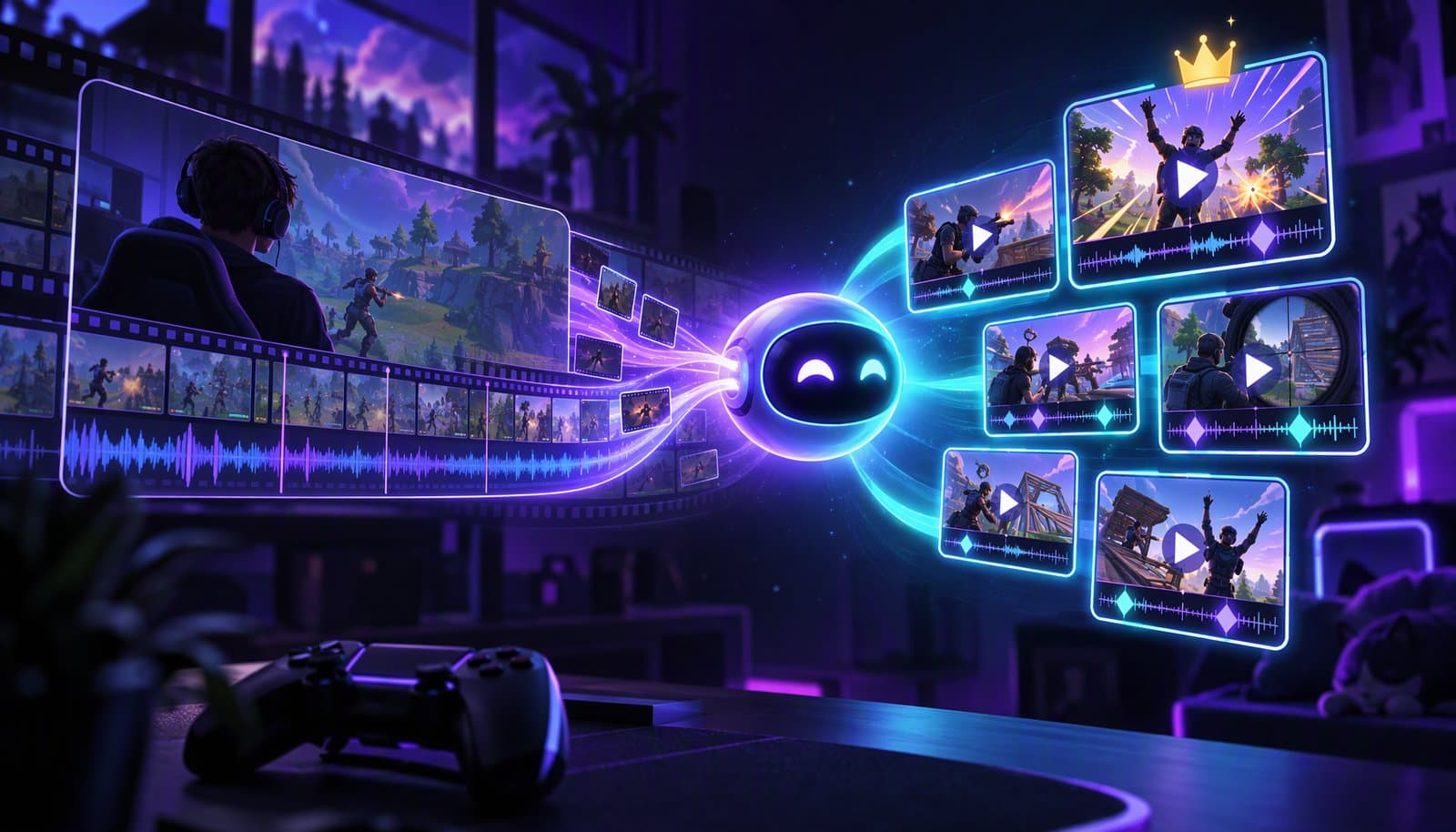
To turn a stream VOD into gaming highlights automatically, save the VOD before it expires (Twitch keeps past broadcasts for 7, 14 or 60 days depending on your account), download it, run it through a highlight tool that scores chat spikes, audio peaks and on-screen events, review the candidates, reframe the keepers to 9:16 with a facecam layout, and check the music before you post.
This tutorial covers the stream-specific part of the job: getting the VOD, how highlight detection decides what counts as a moment, and turning it into vertical clips without a copyright strike. For cleaning up a full gameplay edit (dead air, loading screens, mic balance), see AI Video Editing for Gamers. For how scene detection maps rounds and black screens, see AI Scene Detection for Gameplay.
Facts checked October 20, 2026 against Twitch Help, Twitch's legal pages, YouTube Help and each tool's own site (links under Sources). Full disclosure: Loopdesk is our product.
How long does Twitch keep your VODs?
Twitch saves past broadcasts for 60 days for most Partners and for Prime and Turbo users, 14 days for Affiliates and 7 days for everyone else, and only if Store Past Broadcasts was on before you went live. Highlights and uploads are stored indefinitely but share a 100-hour limit.
| Content | Partners, Prime and Turbo | Affiliates | Everyone else |
|---|---|---|---|
| Past broadcasts (VODs) | 60 days | 14 days | 7 days |
| Vertical or 2K version of a VOD | 7 days, then the horizontal or 1080p version for the rest of the 60 days | 7 days, then the horizontal or 1080p version for the rest of the 14 days | 7 days |
| Highlights and uploads | Indefinitely, within a combined 100-hour limit | Same | Same |
Three details from Twitch's help page catch streamers out:
- Turn storage on from the web. "The Store Past Broadcasts setting can only be enabled through the Creator Dashboard on web." If you stream from your phone, enable it on the web first.
- Unsaved streams are gone. "Twitch Support cannot recover a broadcast that was not saved."
- Highlights use storage even when unpublished. Unpublishing doesn't free space; deleting does.
How do you download your own VOD?
On Twitch, open your Creator Dashboard, choose Video Producer under Content, click the three-dot menu next to the video and choose Download. On YouTube, open YouTube Studio, select Content, open the video's menu and choose Download, but YouTube only gives you 720p or 360p.
- Twitch: there is no bulk download, long videos can take a while to start, and a VOD muted by Twitch's audio recognition stays muted in the download. You can also connect YouTube on your Connections page and use Export to send a video straight to YouTube.
- YouTube Live: "If your live stream is less than 12 hours, YouTube can automatically archive it." Longer streams "may not be captured at all."
- YouTube Studio downloads: MP4 at 720p or 360p depending on the video size, up to five times per video in 24 hours, and not for videos with a copyright or Community Guidelines strike or a preapproved audio track.
Because platform downloads can be muted or lower quality, the best source is a local recording made while you stream, if your streaming software can record and broadcast at the same time.
How does automatic highlight detection work?
Highlight tools score every moment of a VOD on signals that tend to mark a good clip, then rank the top candidates. For streams, the main signals are chat activity, audio peaks and on-screen game events; scene detection and the transcript add context. This scoring is the core of highlight clip generation.
Chat activity spikes
When something happens, chat floods with messages and emotes. Researchers tested this in "Video Highlight Prediction Using Audience Chat Reactions" (Fu, Lee, Bansal and Berg, EMNLP 2017), which combined video with Twitch chat from League of Legends championship broadcasts to predict highlights. StreamLadder says its ClipGPT looks for "funny reactions, chat interactions, intense highlights." The catch: chat reacts after the moment, so start the clip a few seconds before the spike.
Audio peaks
A jump in volume against the stream's baseline, such as gunfire, an explosion or you shouting, is cheap to detect and catches reactions chat might miss. It also flags loud moments that aren't interesting, such as alerts and menu sounds.
On-screen game events
Some tools read the game itself: kill feeds, victory screens and scoreboards. Medal says it "supports event detection in Fortnite, Valorant, League of Legends, Apex Legends, Counter-Strike, and more!" Event detection is game-specific, so coverage depends on what you play.
| Signal | Good at catching | Misses or mis-flags |
|---|---|---|
| Chat spikes | Funny moments, clutch plays, community reactions | Small or quiet chats; arrives seconds late; raids and giveaways |
| Audio peaks | Fights, explosions, loud reactions | Quiet clutch plays; alerts and menu sounds |
| On-screen events | Kills, wins and round ends in supported games | Unsupported games; big moments with no on-screen event |
| Transcript and speech | Stories, explanations, quotable lines | Non-verbal moments; music-heavy audio |
Which tools turn VODs into gaming highlights?
Four kinds of tools do this job: clippers that save moments while you play (Medal), VOD clippers built for streamers (StreamLadder), long-video clippers with gaming layouts (OpusClip), and AI editors that also edit the long version (Loopdesk). The table uses each vendor's own pages as of October 20, 2026.
| Tool | How it finds moments | Sources | Vertical output | Free plan | Paid plans |
|---|---|---|---|---|---|
| Medal | Runs while you play; event detection in Fortnite, Valorant, LoL, Apex, Counter-Strike and more | Your own gameplay on PC and mobile | Not covered on the pages we read | Free; watermark on downloads, 20-minute upload cap, 1080p limit | Premium lifts those limits; 14-day trial; price not shown |
| StreamLadder | ClipGPT scans the whole VOD for reactions, chat interactions and intense moments | Twitch, YouTube and Kick VODs | Clip Editor turns horizontal footage vertical without black bars | Watermark only on Starter Clip Editor features | 7-day free trial; prices not readable when we checked |
| OpusClip | AI picks clips from long videos | Local files and YouTube; Twitch on Pro and Business | "Screenshare/gameplay layout" on paid plans | Watermarked; files expire after 3 days | Starter $15/mo; Pro $29/mo |
| Loopdesk | Aura's Generate Highlights on your footage | Your upload or Google Drive | Aspect-ratio reframing | None, no trial | Creator Lite $19/mo or $15/mo yearly |
We also looked at Eklipse, but its site blocked our fetcher (HTTP 403) on October 20, 2026, so we couldn't verify its current features or prices.
Medal: best for clipping while you play
Medal runs in the background on PC and mobile and is "ready to save whatever just happened": you can replay the last 15 seconds, 60 seconds, 10 minutes or the whole session. It's free, with optional Premium features. It is built around clips captured as you play rather than an old VOD, so set it up before your next session.
StreamLadder: best for turning Twitch and Kick VODs into vertical clips
StreamLadder's ClipGPT "analyzes your entire VOD" and works with Twitch, YouTube and Kick VODs. Its Clip Editor turns horizontal stream footage into vertical clips with "no more awkward cropping or black bars," and its Content Publisher schedules clips to TikTok, YouTube Shorts and Instagram Reels.
OpusClip: best if you clip podcasts and streams in one tool
OpusClip's pricing page lists a "Screenshare/gameplay layout" on paid plans and Twitch import on Pro and Business. The free plan takes local files and YouTube links, adds a watermark and expires files after 3 days. Starter is $15/month and Pro $29/month. For a wider comparison, see best AI clipping tools.
Loopdesk: best for editing the full VOD and the clips together
Disclosure: Loopdesk is our product.
Loopdesk's AI agent, Aura, has a Generate Highlights Quick Action and takes plain-English instructions, so one pass can cut highlight clips, reframe them to vertical, caption them in 108 languages and tighten the long edit with silence removal. Batch editing handles a backlog of 50+ videos, and it runs in the browser with nothing to install. The limits: it doesn't document game-specific event detection like Medal's, it needs an internet connection, and it has no free plan or trial. For multi-hour files, see Best AI Video Editor for Long Videos.
How do you format gaming highlights for vertical video?
Use a 9:16 frame (1080 x 1920 pixels) split into two zones: your facecam on top and the gameplay below, cropped to the action rather than squeezed to fit. Keep captions near the seam between the two and away from the bottom and right edges, where app buttons sit.
- Stacked layout: facecam on top, gameplay below. It suits reaction-heavy streams.
- Full-frame gameplay with a small cam overlay: better when the action needs the whole screen.
- Crop per clip: the crosshair, minimap or kill feed may not survive a center crop, so reposition each clip.
- Caption the reaction: captions help sound-off viewers; keep them off the HUD.
- Grab vertical source fast: if you stream in Twitch's Dual Format or vertical, the vertical VOD version expires after 7 days.
Video aspect ratios explained covers the platform specs.
Can you use music in gaming highlights?
Only music you own or are licensed to use. Twitch says it "may mute VODs and delete Clips where our audio recognition system detects copyrighted audio," and a DMCA notification generally adds a copyright strike; three strikes make you a repeat infringer, and Twitch terminates repeat infringers' accounts. On YouTube, Content ID can block, monetize or track a video that matches a rights holder's file.
- Muted stays muted. A muted VOD downloads muted, so clips cut from it will have silent gaps.
- Know the banned uses. Twitch's music guidelines list radio-style broadcasts, DJ sets, karaoke and lip-sync performances among uses you can't include in streams "or recorded videos (e.g., VODs and Clips)" without the rights.
- Game soundtracks can be claimed too. Check the publisher's video policy before you post a clip with in-game music.
- Add music in the edit, from a library licensed for the platform you post to, instead of keeping stream background music.
You can see your Twitch strike count in the Video Producer.
How do you turn a VOD into highlights step by step?
Six steps take you from the stream settings to a posted clip.
Step 1: Turn on VOD storage before you go live
Enable Store Past Broadcasts in your Creator Dashboard on the web, and note your retention window: 7, 14 or 60 days.
Step 2: Download the VOD or keep a local recording
Download from the Video Producer, or better, keep a local recording at full quality. Check for muted sections before you start.
Step 3: Run highlight detection
Upload the VOD to your highlight tool and ask for more candidates than you need, for example 15 to get five good clips.
Step 4: Review and trim each candidate
Watch every candidate. Start a few seconds before the action so viewers get the setup, and end on the reaction or the payoff.
Step 5: Reframe to vertical with a facecam layout
Reframe each keeper to 9:16, stack the facecam over the gameplay and recrop around the action.
Step 6: Caption, check the music and publish
Add captions, replace any unlicensed music, and post. Repeat the same settings across your backlog as a batch.
Sources
Read October 20, 2026.
- Twitch Help, "On-Demand Content on Twitch": https://help.twitch.tv/s/article/video-on-demand
- Twitch, Music Guidelines: https://legal.twitch.com/en/legal/music/ · DMCA Guidelines: https://legal.twitch.com/en/legal/dmca-guidelines/
- YouTube Help, "Archive live streams": https://support.google.com/youtube/answer/6247592 · "Download YouTube videos that you've uploaded": https://support.google.com/youtube/answer/56100 · "How Content ID works": https://support.google.com/youtube/answer/2797370
- Fu, Lee, Bansal and Berg, "Video Highlight Prediction Using Audience Chat Reactions," EMNLP 2017: https://arxiv.org/abs/1707.08559
- Medal: https://medal.tv · https://medal.tv/premium
- StreamLadder: https://streamladder.com
- OpusClip pricing: https://www.opus.pro/pricing
- Eklipse: https://eklipse.gg (returned HTTP 403 to our fetcher)
- Loopdesk: https://loopdesk.ai/llms.txt · https://loopdesk.ai/pricing
Frequently Asked Questions
How long do Twitch VODs last?
Twitch keeps past broadcasts for 60 days for most Partners and for Prime and Turbo users, 14 days for Affiliates and 7 days for everyone else, if Store Past Broadcasts was on before you went live. Highlights and uploads stay indefinitely within a 100-hour limit.
Can AI make gaming highlights automatically?
Yes. Highlight tools score a VOD on chat spikes, audio peaks, on-screen game events and speech, then cut the top moments into clips. They find candidates; you still choose which ones are worth posting and trim where each clip starts and ends.
How do I download my Twitch VOD?
Go to your Creator Dashboard, open Video Producer under Content, click the three-dot menu next to the video and choose Download. Twitch has no bulk download, and a VOD muted for copyrighted audio stays muted when you download it.
What is the best AI video editor for gaming clips?
It depends on the workflow. Medal clips while you play, StreamLadder and OpusClip turn VODs into vertical clips with gaming layouts, and Loopdesk edits the long video and the clips together in a browser. Check each tool's free plan and watermark first.
Will music in my stream get my clips taken down?
It can. Twitch may mute VODs and delete clips when its audio recognition detects copyrighted audio, and DMCA notifications add copyright strikes; three strikes can end an account. Use music you own or are licensed to use.
Why is my YouTube Studio download only 720p?
YouTube Studio downloads your own videos as MP4 files at 720p or 360p, depending on the video size. For full-quality highlights, keep a local recording of the stream or the original file you uploaded.
Sitting on a backlog of VODs? Try Loopdesk - ask Aura to generate highlights, reframe them to vertical and caption them, across 50+ videos at once. Plans start at $19/month ($15 billed annually).