
How to Use an AI Video Editor: A Step-by-Step Guide to Learning AI Editing (2026)
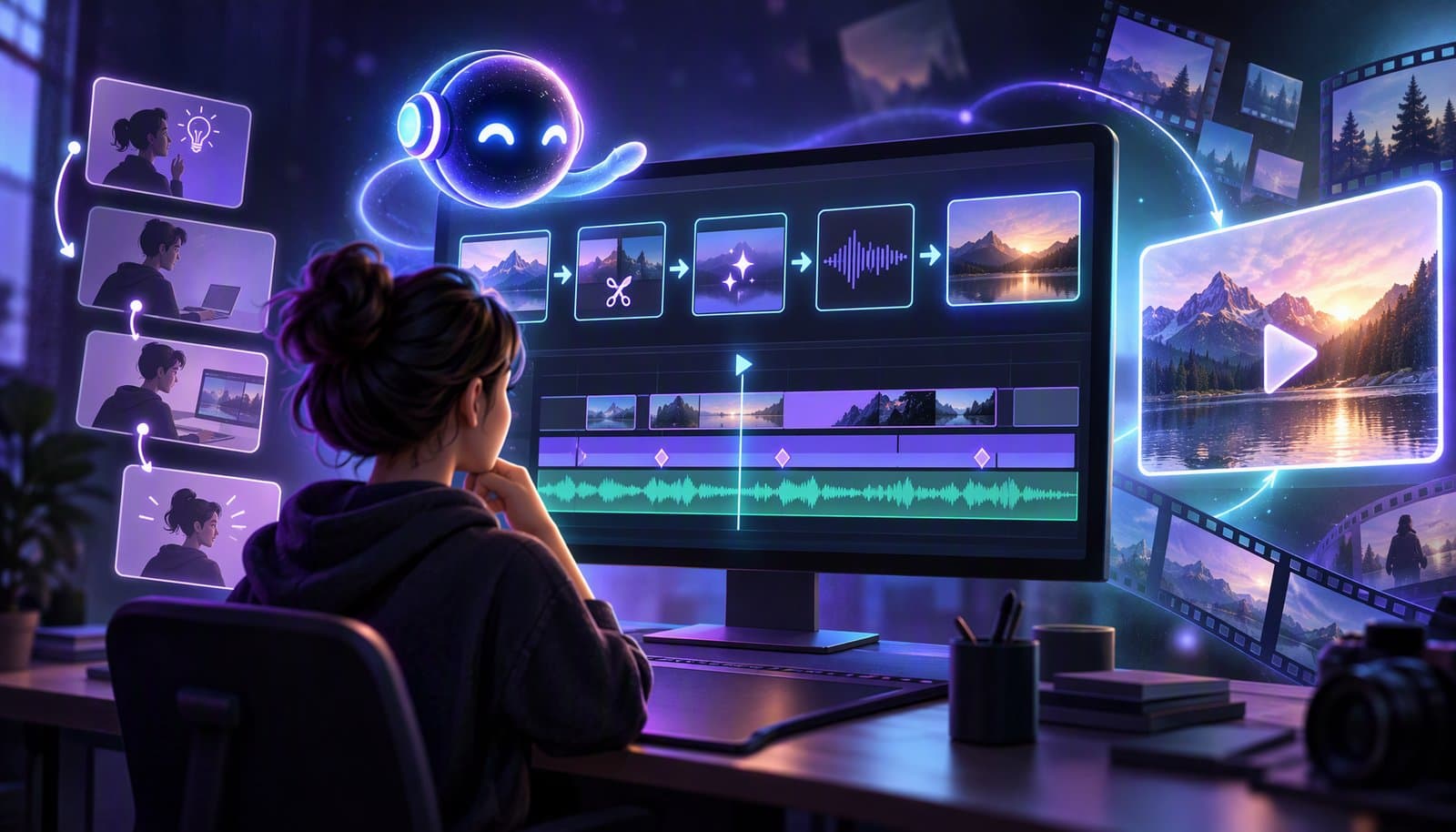
To use an AI video editor, upload one real video, describe the edit you want in plain English, review the rough cut it makes, check the captions, fix problems with short follow-up prompts, then export for each platform. Learning AI video editing mostly means practicing that loop: direct, review, correct, and repeat.
This guide has two parts. First comes a six-step walkthrough for your first edit, with 10 example prompts and the mistakes to avoid. Then there is an eight-lesson learning path for building the skill at your own pace. The steps work in any prompt-driven editor. We use Loopdesk, our own editor, and its AI agent, Aura, as the worked example.
If you are brand new, start with what AI video editing is, then come back here to practice. Treat the software like an editor you are directing, not a magic button.
How to use an AI video editor, step by step
Using an AI video editor comes down to six steps: upload, describe, review, caption, refine, and export. You give instructions in plain English and the editor does the mechanical work, such as cutting pauses or transcribing speech. Your job is to judge the result. Budget about an hour for your first 10-minute video.
Step 1: Upload one real video
Pick a video you actually need to publish, ideally 5 to 15 minutes of mostly spoken content: a tutorial, podcast segment, webinar excerpt, or phone recording. Spoken footage is the easiest place to start because the editor can work from the transcript.
Upload the full source file, not a pre-trimmed version. Wait for the editor to finish transcribing and analyzing it before you ask for anything.
In Loopdesk: the editor runs in the browser, so there is nothing to install. Upload from your computer or import from Google Drive or Dropbox. On upload, Loopdesk transcribes the footage and runs scene detection and speaker detection, so the transcript and scene map are ready before you start prompting.
Step 2: Describe the edit in plain English
Write your first prompt as an outcome, not a list of buttons. Say what to remove, what to keep, and who the video is for. Keep the first prompt about structure, such as pacing, dead air, and retakes. Leave styling for later.
A good first prompt looks like this:
Remove pauses longer than one second, filler words, and false starts. Keep the natural pauses before key points. This is a tutorial for beginners, so don't cut any steps.
In Loopdesk: type the instruction into the chat with Aura. Aura carries out multi-step editing workflows from natural-language instructions, and the result shows up on the timeline as a rough cut you can inspect.
Step 3: Review the rough cut
Watch the whole rough cut before you change anything else. A first pass at 1.5x speed is fine. Look for three problems: cuts that change your meaning, cuts so tight the speaker never breathes, and jump cuts that feel jarring. Write down timestamps as you go, because you will use them in Step 5.
Beginners often skip this step, and it matters most. The AI handles mechanical cuts quickly, but it does not know which pause was there for emphasis.
In Loopdesk: AI edits land on a frame-accurate timeline, so you can see each cut and trim it by hand.
Step 4: Add and check captions
Generate captions once the cut is mostly locked, so you are not checking text on footage you later remove. Then watch the video with the sound off. Fix names, product terms, acronyms, and any line break that splits a phrase awkwardly. If the video will run as a vertical clip, make sure captions sit clear of the platform's on-screen buttons.
In Loopdesk: auto captions are available in 108 languages, and you can style them by prompt, for example: "add bold, animated captions in white with a black outline, one phrase at a time." Caption editing and styling are unlimited on every plan.
Step 5: Refine with follow-up prompts
Fix what you noted in Step 3 with short, specific follow-ups. Reference timestamps and describe the problem rather than the tool. "The cut at 2:14 removes the end of my sentence; restore it" works better than "fix the cuts." Make one change per prompt so you can tell which instruction caused which result.
Once the structure is right, use follow-ups for polish: a tighter intro, a title card, or light audio and color cleanup. Example follow-ups:
- "Restore the pause before 'the most important part' at 3:40."
- "Start the video where I say 'Here's the problem.'"
- "Spell the product name as 'Loopdesk' in every caption."
In Loopdesk: Aura also suggests edits of its own as you work. Each suggestion comes with a preview, so you can accept, modify, or reject it like any other change.
Step 6: Export for each platform
Export your main version first, usually 16:9 for YouTube or a website. Then make platform versions: 9:16 for Shorts, Reels, and TikTok, and 1:1 or 4:5 for feeds. Watch each exported file once, start to finish, as a viewer rather than an editor. Check the first three seconds, the captions, and the ending.
In Loopdesk: one-click export prepares a version for each platform, and aspect ratio reframing creates 9:16, 1:1, and 16:9 versions with the speaker kept centered. Exports go up to 4K with no watermark on any plan, and 4K exports are unlimited. Built-in content scheduling lets you publish to connected platforms from the editor.
What should you type into an AI video editor? 10 example prompts
Good prompts name an outcome, a limit, and a reason. "Remove filler words but keep the pause before the punchline" gives the AI far more to work with than "make it better." The 10 prompts below cover the common jobs in a first edit. Swap in your own timestamps, names, and platforms, and run them one at a time.
| Prompt | What it does | When to use it |
|---|---|---|
| "Remove pauses longer than one second and filler words like um and uh." | Cuts dead air and verbal clutter without changing what you said | First pass on any talking-head video, podcast, or tutorial |
| "Remove false starts and repeated takes. Keep the last complete version of each sentence." | Drops flubbed lines and retakes | Recordings where you restarted sentences |
| "Start the video at the moment I say 'Here's the problem.'" | Trims a slow intro so the video opens on the hook | When the first seconds are warm-up, mic checks, or small talk |
| "Add captions, two lines max, white text with a black outline." | Transcribes speech and applies a readable caption style | Any video likely to be watched with the sound off |
| "In the captions, spell these names exactly: [names and product terms]." | Corrects recurring transcription errors in one pass | After the first caption pass, before export |
| "Find three 30 to 60 second moments that work on their own, each with a clear hook." | Suggests highlight clips for short-form posts | Repurposing a long video into Shorts, Reels, or TikToks |
| "Make a 9:16 version that keeps the speaker centered." | Reframes horizontal footage for vertical platforms | After the main cut is locked |
| "Switch camera angles to whoever is speaking." | Automates multicam switching between angles | Podcasts and interviews recorded with two or more cameras |
| "Even out the volume between speakers and lower the music under speech." | Balances audio levels across the edit | When one voice is louder or music fights the dialogue |
| "Apply the same cuts, caption style, and 9:16 export to every video in this folder." | Runs one recipe across many files with batch editing | Weekly series and other repeatable formats |
Not every editor supports every prompt. If a request fails or does something odd, split it into smaller instructions or do that part by hand on the timeline. For more prompt patterns, see how to edit faster with natural-language prompts.
Common mistakes to avoid when using an AI video editor
Beginner mistakes usually come from two habits: trusting the first result and giving vague instructions. AI editors handle mechanical work quickly, but they can't tell which pause was intentional or how a guest's name is spelled. Here are the mistakes to watch for, each with a simple fix you can apply on your next edit.
- Starting with a big project. A 90-minute webinar is hard to review. Learn on a 5 to 15 minute video first.
- Writing vague prompts. "Make it better" gives the AI nothing to aim for. Name the outcome, the limit, and the audience.
- Stacking changes in one prompt. If five changes land at once, you can't tell which one went wrong. Make one change per prompt while you are learning.
- Skipping the review. Watch every rough cut in full before you caption or export. The AI can't tell which pause was there for emphasis.
- Cutting too tight. Removing every pause makes speakers sound rushed. Set a minimum pause length and keep the breath before key points.
- Trusting captions on names and jargon. Transcription can misspell names, brands, and acronyms. Check them with the sound off.
- Styling before structure. Effects, music, and animated captions don't fix a slow edit. Lock the cut first.
- Reframing too early. If you make vertical versions before the main cut is locked, every later change has to be redone in each version. Export 9:16 and 1:1 last.
- Not saving what worked. When a prompt works twice, save it as your editing recipe for the next video.
How to learn AI video editing: an eight-lesson path
To learn AI video editing, repeat the six steps above on real projects while adding one skill at a time: tool choice, importing, rough cuts, captions, reframing, finishing, and batching. Each lesson below has one skill, one short practice exercise, and one deeper guide, so you build judgment without getting lost in tool menus.
| Lesson | Skill | Time | Deep-dive link |
|---|---|---|---|
| 1 | Know what AI can and cannot automate | 10 minutes | Agentic editing glossary |
| 2 | Choose a beginner-friendly editor | 15 minutes | Best AI Video Editing Tools 2026 |
| 3 | Import and organize footage | 10 minutes | Cloud media import and scene detection glossary |
| 4 | Make a first rough cut | 15 minutes | Raw Footage to Final Cut in 10 Minutes |
| 5 | Add and review captions | 15 minutes | Complete Guide to AI Captions |
| 6 | Reframe and cut social clips | 20 minutes | AI Video Cropping Tools 2026 |
| 7 | Finish color and audio | 20 minutes | What Is Color Grading |
| 8 | Batch the repeatable work | 20 minutes | Batch Video Editing |
Lesson 1: Know what AI can automate and what it can't
AI editors use transcription, visual analysis, and editing logic to automate cuts, captions, reframing, highlights, and finishing passes. They are not a substitute for your taste. Start by separating mechanical work from creative judgment, then read what AI can edit today for a realistic picture of the limits.
What you'll practice: watch one minute of raw footage and write two columns: tasks the AI can do, and decisions you still want to make. Put silence removal, captions, scene detection, and rough cuts in the AI column. Put message, audience, story order, and final approval in the human column.
Lesson 2: Pick your first tool
Your first AI video editor should be simple enough to export from on day one, but capable enough to keep using after the tutorial ends. Compare the best AI video editing tools, the easiest AI video editors, and the pricing comparison before you commit.
What you'll practice: choose one editor and run one tiny test before importing a serious project. Can you upload footage, describe an edit, see the timeline, fix a mistake, and export without a watermark? Loopdesk is paid, browser-based, and agentic; CapCut is friendlier for free mobile templates; Descript is strong for transcript-first talking heads.
Full disclosure: Loopdesk is our product.
Lesson 3: Import and organize footage
Good AI edits start with clean inputs. Import the full source file, keep related audio and camera angles together, and let the editor analyze scenes before asking for creative work. Scene detection is what lets the editor find where sections, speakers, or visual changes begin.
What you'll practice: upload one 10-minute clip, name it clearly, and let the tool build its transcript and scene map. If your editor exposes bins, folders, or a cloud library, use them. If it does not, keep the project small so you can understand every AI decision.
Lesson 4: Your first AI rough cut (silence and filler removal)
A beginner's best first win is a clean rough cut. Ask the AI to remove dead air and obvious verbal clutter before you try anything stylistic. Silence removal and filler word removal are low-risk because they reduce friction without changing the story.
What you'll practice: run the first two prompts from the table above, then review every cut at fast speed. Restore any sentence where the rhythm feels too tight. This teaches the most important AI editing habit: accept automation for labor, but keep review control.
Lesson 5: Captions in one pass
Captions are where many beginners feel instant progress. Use an AI captions guide to understand transcription, line breaks, speaker names, translation, and style. The goal is readable captions that help comprehension, not animated text that competes with the speaker.
What you'll practice: generate captions once, watch the full video with sound off, and correct names, terms, and brand language. If your audience watches on mobile, check the 9:16 preview before exporting. Captions should be accurate, legible, and timed to speech.
Lesson 6: Reframe for vertical and cut clips
Once the main edit works, make platform versions. AI reframing turns 16:9 footage into 9:16 or 1:1 while keeping faces centered, and clipping tools turn strong moments into Shorts, Reels, or TikToks. Read the cropping tools guide and clipping tools ranking for the deeper workflow.
What you'll practice: choose one 30 to 60 second moment, convert it to vertical, and check every moment where the speaker moves. A good reframe follows the subject without making the shot feel seasick. A good clip has a clear hook, one idea, and a clean ending.
Lesson 7: Color, audio, and finishing basics
Finishing is not where beginners should chase perfection. Start with understandable speech, consistent volume, simple color correction, and export settings that match the platform. AI-assisted color grading can follow prompts like make this feel more cinematic, while the deeper craft still belongs in color grading practice.
What you'll practice: improve voice clarity, reduce background noise if needed, apply one subtle color adjustment, and export a review copy. Do not stack effects just because the editor offers them. The beginner goal is a clean video people can watch comfortably on a phone or laptop.
Lesson 8: Batch and automate your workflow
After one successful edit, look for repetition. Batch workflows are where AI becomes a business advantage: the same caption style, rough-cut rule, reframe, or clip prompt can run across a folder of videos. Start with batch video editing and map your recurring creator workflow.
What you'll practice: write a reusable instruction for your next three videos. Include what to remove, how captions should look, which formats to export, and how clips should be chosen. If the instruction works twice, save it as your editing recipe.
Practice project: edit one 10-minute video end to end
The fastest way to learn how to edit videos with AI is to finish one small project. Use a real 10-minute video: a tutorial, podcast segment, webinar excerpt, or phone recording. The goal is not a masterpiece. The goal is one clean, captioned, platform-ready export in about one hour, using the six steps above.
Before you call it done, check your work against this list:
- The rough cut keeps every point you meant to make.
- No cut lands mid-word or removes a breath the speaker needed.
- Captions spell every name, product, and acronym correctly.
- One vertical clip opens with a clear hook and keeps the speaker in frame.
- You watched each exported file once, start to finish, as a viewer.
- You saved the prompts that worked as a recipe for next time.
Should you still learn traditional editing?
Yes, but learn it after you understand outcomes. Traditional editing teaches pacing, continuity, audio judgment, and visual taste. AI editing lets beginners reach those lessons faster because the first draft appears quickly. The realistic future is not editors versus AI; it is editors directing AI systems, as covered in will AI replace video editors.
If you plan to do deep compositing, manual keyframing, cinema-grade color, or offline feature work, traditional tools still matter. If you make podcasts, courses, marketing clips, webinars, or social content, learn AI workflow first and traditional timeline craft as your edits demand it.
Frequently Asked Questions
How do I use an AI video editor?
Follow six steps: upload a real video, describe the edit in plain English, review the rough cut, add and check captions, refine with short follow-up prompts, then export for each platform. The AI does the mechanical work. You check meaning, names, and pacing before you publish.
How long does it take to learn AI video editing?
Most beginners can learn the basic workflow in a weekend: import footage, request a rough cut, add captions, reframe a clip, and export. Your first guided edit of a 10-minute video takes about an hour with the six steps above. Getting good takes longer because you are learning judgment, not buttons. Practice on real projects and review every AI choice.
How do I learn AI video editing?
Follow the eight lessons above in order: learn what AI can and can't automate, pick one tool, import real footage, ask for a rough cut, add captions, reframe one clip, do the finishing pass, then batch it. Each lesson is one instruction on one real video, so you learn the concept from the result rather than from a manual.
What should I type into an AI video editor?
Describe an outcome, a limit, and a reason, such as "remove pauses longer than one second, but keep the pause before key points." Start with structure (pauses, retakes, a slow intro), then captions, then platform formats. The prompt table above has 10 examples you can adapt.
What should I learn first?
Learn rough cuts first. If you can remove dead air without damaging meaning, you understand the core of editing. Then add captions, reframing, finishing, and batching. Do not start with effects; start with making one real video clearer and easier to watch.
Can I learn AI video editing for free?
Yes, you can learn the concepts with free tiers or free tools, especially for captions, templates, and simple manual edits. Paid agentic tools become useful when you need watermark-free exports, batch workflows, 4K delivery, or an AI agent that executes full edits. Loopdesk has no free plan; Creator Lite is $19/month, or $15/month billed annually.
Do I need a powerful computer?
Usually no. Browser-based and cloud-assisted AI editors move much of the heavy work away from your local machine. Loopdesk runs in modern browsers using WebGPU and WebCodecs. Heavy VFX, deep compositing, and large offline projects still benefit from desktop hardware.
Which AI video editor is best for learning?
The best learning editor shows the AI's work on a timeline, lets you fix mistakes, and does not require installation. Loopdesk is strongest for prompt-driven agentic workflows. CapCut is easiest for free mobile templates. Descript is strong if you think in transcripts.
Ready to practice with an agentic AI video editor? Try Loopdesk - unlimited 4K exports, no watermarks.