
How to Add Auto Captions to Any Video (2026 Guide)
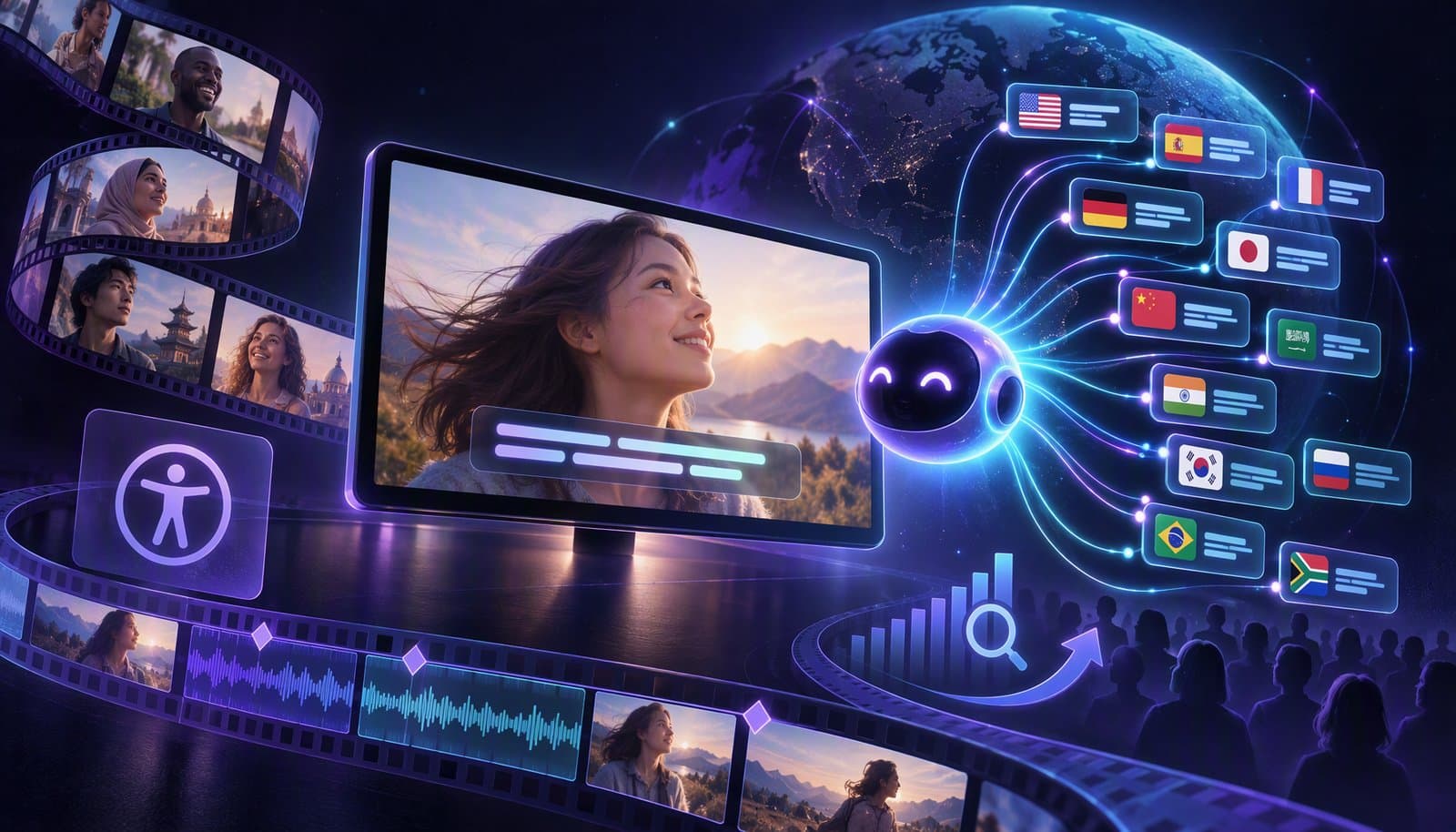
To add auto captions to any video, follow three steps: generate a timed transcript with a speech-to-text captioner (YouTube Studio, TikTok and Instagram have free built-in options; AI editors like Loopdesk add styling), review names, jargon and timing, then style the captions and export them burned in or as an SRT or VTT file.
In short, auto captions are captions that speech recognition writes and times for you. They're fast, but they're a first draft. YouTube's own help center tells creators to always review automatic captions, because mispronunciations, accents, dialects and background noise can all cause errors.
- Generate. Upload the video to a tool with automatic captioning and let it transcribe the audio.
- Fix. Read the captions against the audio and correct names, jargon and misheard words.
- Style and export. Pick a readable style, keep text clear of platform buttons, and export burned-in captions, an SRT or VTT file, or both.
What Are Auto Captions, and How Are They Different From Subtitles and SDH?
Auto captions are captions generated automatically by speech recognition. "Captions," "subtitles" and "SDH" describe what the text contains and who it's for; "auto" only describes how it was made. An auto-generated track usually covers speech only, so treat it as the starting point for a caption or SDH track, not a finished one.
| Term | What it usually contains | Typical use |
|---|---|---|
| Auto captions | Machine-transcribed speech with timing | YouTube, TikTok, Instagram and AI editors |
| Captions | Speech plus meaningful sounds, usually in the spoken language | Accessibility tracks and CC menus |
| Subtitles | Dialogue as text, often translated into another language | Viewers who don't speak the audio's language |
| SDH | Subtitles for Deaf and hard-of-hearing viewers, with speaker IDs and sound cues | Streaming services and media players |
The difference matters when you review. For Deaf and hard-of-hearing viewers, add what a transcript misses, such as "[laughter]," "[phone buzzing]" or a speaker label. The WHO estimates that about 430 million people, over 5% of the world's population, need rehabilitation for disabling hearing loss.
For the full breakdown, with SRT and WebVTT examples, read captions vs subtitles vs SDH.
What Are the Free Ways to Add Auto Captions?
You can auto-caption a video for free inside the platforms you already post to. YouTube Studio, TikTok and Instagram all generate captions with speech recognition at no cost. The trade-off is control: the captions stay on that one platform, styling is limited, and you still need to proofread them before you rely on them.
Here's what each platform documents, as of October 2026:
| Free option | How it works | Can you edit the text? | Limits to know |
|---|---|---|---|
| YouTube Studio automatic captions | YouTube creates captions for long-form videos and Shorts after upload, in dozens of languages | Yes: Studio → Subtitles, then edit or remove lines | Processing can take time. Overlapping speakers, a long silent intro or poor audio can stop captions from generating |
| TikTok auto-generated captions | Generated for uploaded videos in the language you choose under "Select video language" | Yes: tap the caption, then "Edit captions" | Shown on eligible videos only, and they live on TikTok |
| TikTok creator captions | Tap "Captions" on the preview screen and the speech is transcribed | Yes: preview and edit each line before saving | You can change font style and color, inside the app only |
| Instagram auto captions | Instagram uses speech recognition to caption reels and videos; viewers switch them on or off | Not covered in Instagram's help article | Meta notes captions "may not be available to everyone" |
| Loopdesk SRT ↔ VTT converter | Converts caption files between SRT, VTT and plain text in your browser | Not an editor; it converts formats | Needs an existing caption file (see exports) |
Built-in captions are a good default when a video lives on one platform. They fall short when you want the same styled captions everywhere or work in several languages.
Loopdesk isn't one of the free options: it has no free plan or free trial. Creator Lite is $19/month ($15/month billed annually), and Creator Pro is $39/month ($31/month billed annually). See pricing for the full plan details.
How Do You Add Auto Captions in Loopdesk?
In Loopdesk, you upload a video in the browser, ask the AI agent, Aura, to caption it, review and edit the transcript, describe the style you want in plain English, and export. You can burn the captions into the video or download SRT/VTT sidecar files for platform-native captioning.
Full disclosure: Loopdesk is our product.
Step 1: Upload your video
Open app.loopdesk.ai/home. Loopdesk runs in Chrome, Firefox, Safari or Edge, so there's nothing to install. Upload an MP4, MOV or other common video format; if you combine clips, mixed resolutions are unified automatically.
Step 2: Ask Aura to generate captions
Open the AI chat and type a request in plain English. Example prompts: "Generate captions," "Transcribe this video" or "Add subtitles in Spanish." Aura identifies the spoken language and times the captions word by word.
Styling is prompt-driven too, so you can ask for the look in the same message:
"add animated captions, highlight keywords"
You can keep the spoken language or caption in a different one (see languages). For podcasts and interviews, multi-speaker detection attributes captions to the correct speaker.
Step 3: Review and approve the transcript
Every AI suggestion comes with a preview you can accept, modify or reject, and you can review and edit the captions before export. Read them against the audio, especially names, jargon and speech over music; the accuracy section has a table of fixes. Captions stay synchronized to your timeline and update when you make edits, and caption editing and styling are unlimited on every plan.
Step 4: Style the captions with a prompt
Pick a caption style or describe the look you want. Loopdesk has 51 caption fonts with right-to-left language support, and captions render with word-by-word highlighting during playback. Prompts that work well:
- "Bold white captions with a black outline, one phrase at a time"
- "Highlight the current word in yellow"
- "Place captions in the lower third"
- "Use brand color #FF6B35 for caption text"
Style changes apply across the whole video. If the emphasis lands on the wrong words, refine it with a follow-up prompt.
Step 5: Export the video
Choose how the captions ship. Loopdesk exports the video with burned-in captions, or provides SRT/VTT sidecar files for platform-native captioning on YouTube, your own player or a podcast host (see SRT, VTT or burned-in).
Export up to 4K, or use one-click exports for YouTube, TikTok/Reels and Instagram. Reframing to 16:9, 9:16 or 1:1 keeps the speaker centered and repositions the captions for each aspect ratio. There's no watermark on any plan, and 4K exports are unlimited.
How Accurate Are Auto Captions?
Auto captions are usually good enough to start from but not to publish unchecked. Accuracy depends on audio quality, accents, overlapping speech and vocabulary the model hasn't seen, especially names and jargon. YouTube's help center warns that automatic captions can misrepresent speech and tells creators to review them. Plan a proofreading pass for every video. Review is also what accessibility standards expect; see caption compliance: ADA and WCAG for when auto captions are enough.
Names and brand terms
Speech models guess unfamiliar names from similar-sounding words, so a guest called Siobhan can become "Shivon." List the people, products and places in the video before you review, then check every instance, not just the first.
Jargon, acronyms and numbers
Acronyms and technical terms often come out phonetic or in the wrong case, and numbers drift ("fifteen dollars" in one line, "$15" in the next). Pick one convention and match your on-screen graphics.
Accents, crosstalk and background noise
Strong accents, fast speech, music beds and crosstalk cause the most errors. YouTube notes that captions may not generate at all when speakers overlap or several languages are spoken at once. Fix what you can at the source with close mics and quiet music. If a tool detects the wrong language, name it in your request, for example "Transcribe this in Spanish."
| Problem | What it looks like | Fix |
|---|---|---|
| Misheard names | "Shivon" for "Siobhan" | Keep a name list and correct every instance before styling |
| Brand and product terms | A product name split into two words | Correct once, then scan for repeats and keep capitalization consistent |
| Jargon and acronyms | An acronym spelled out phonetically | Standardize casing; spell it out on first use if viewers may not know it |
| Numbers, prices and units | "fifteen dollars" vs "$15" | Use numerals for stats and prices, and match on-screen graphics |
| Accents and fast speech | Dropped or merged words | Re-listen at slower speed and split long lines |
| Overlapping speakers | Two people's words in one line | Split the line; use speaker labels for interviews |
| Music or noise | Lyrics or noise transcribed as words | Lower the music under speech and delete phantom lines |
| Wrong language detected | Garbled text or an unwanted translation | Specify the language, e.g. "Transcribe this in Spanish" |
| Masked words on YouTube | "[ __ ]" in place of a word | YouTube's "Don't show potentially inappropriate words" setting does this by default; change it in YouTube Studio settings |
How Should You Style Auto Captions for Shorts, Reels and TikTok?
For vertical short-form video, make captions large, high-contrast and short: one or two lines, a few words at a time, in the lower-middle of the frame. Keep them out of each app's safe zones, the strips where usernames, descriptions and buttons cover your video, and highlight only the words that carry the point.
| Setting | Rule of thumb | Why |
|---|---|---|
| Size | Readable on a phone at arm's length | Vertical video is watched on a small screen |
| Font | Bold sans-serif | Thin and script fonts blur at small sizes |
| Contrast | White or yellow text with a dark outline, shadow or box | Stays legible on bright, busy footage |
| Line length | One or two short lines | Viewers read while they watch |
| Pacing | One phrase at a time, synced to speech | Words appear as they're spoken |
| Emphasis | At most one highlighted keyword per line | Too much color reads as noise |
| Position | Lower-middle of the frame, inside the safe zone | Avoids the post description, username and buttons |
Safe zones. Each app draws its interface over vertical video: the account name, description and audio label along the bottom, and like, comment and share buttons down the right side. Positions differ by app and change with updates, so treat the bottom strip and right edge as no-go areas and preview the export on a phone.
Don't double-caption. If you burn captions in, check whether the platform adds its own auto captions too. Where the app allows it (TikTok does), edit or remove them so viewers don't see two layers of text.
In Loopdesk, one prompt such as "bold white captions with a black outline, one phrase at a time, in the lower third, highlight keywords in yellow" covers most of the table. Then use the one-click export for TikTok/Reels, Instagram or YouTube, which repositions captions for each aspect ratio.
Should You Export SRT, VTT or Burned-In Captions?
Use burned-in captions for Shorts, Reels and TikTok, where you want the style to travel with the video. Use an SRT or VTT file when the platform accepts caption tracks, such as YouTube or a web video player, so viewers can turn captions off and the text stays editable. Many creators publish both.
| Format | What it is | Can viewers turn it off? | Best for | In Loopdesk |
|---|---|---|---|---|
| SRT (.srt) | Plain-text file of numbered cues with comma timestamps (00:00:01,000) | Yes | YouTube uploads, video hosts and editing software | SRT sidecar file |
| VTT / WebVTT (.vtt) | Web caption format with a WEBVTT header and dot timestamps (00:00:01.000), plus optional positioning | Yes | HTML5 players on your own site and web video hosts | VTT sidecar file |
| Burned-in (open captions) | Text rendered into the video's pixels | No | Shorts, Reels, TikTok, ads and platforms without caption tracks | Video export with captions burned in |
As of October 2026, YouTube Studio accepts both .srt and .vtt uploads. Its help page says only basic SRT files are supported, with no style markup, while VTT files can carry positioning but only limited styling. For cue syntax, platform support and conversion pitfalls in depth, see SRT vs VTT.
Loopdesk covers both routes: it exports videos with burned-in captions or provides SRT/VTT sidecar files for platform-native captioning. Burned-in text isn't a text track, so screen readers can't read it and viewers can't switch it off; where a platform supports caption tracks, upload the sidecar file alongside the video. For what Google and YouTube actually document about captions and search, see captions and video SEO.
If a podcast host wants SRT but your site's player needs VTT, our free SRT to VTT converter switches formats in your browser with no upload or signup. It can also strip a caption file to plain text for a transcript.
Can You Add Auto Captions in 108 Languages?
Yes. Loopdesk generates automatic captions in 108 languages, including multilingual and mixed-language videos and right-to-left scripts such as Arabic and Hebrew. You can keep the spoken language or translate captions into another one, so one recording can serve several markets without a separate captioning tool for each.
Earlier versions of this guide cited 57 languages, the figure still in its URL; Loopdesk now lists 108. What matters for multilingual work:
- Detect, keep or translate: Loopdesk identifies the spoken language, including switches within one video, and you can keep it or caption in a different language.
- Native scripts: the 108 languages include 22 Indian languages, and captions use a typeface that fits each script, including Indian, right-to-left and East Asian text.
- Right-to-left text: captions support right-to-left languages, so Arabic or Hebrew lines read in the correct direction.
The free options are narrower. YouTube's automatic captions cover a fixed list of languages, and on videos with several audio tracks they use only the default language.
Multilingual captions let viewers follow along in their own language, turn one podcast or tutorial into content for several markets, and serve diaspora audiences who switch between languages. Machine translation is still a draft, though: for medical, legal or paid course content, have a fluent speaker review it. For fonts, RTL rendering and transcription routing in depth, see our multilingual captions guide.
Frequently Asked Questions
What are auto captions?
Auto captions are captions generated by speech recognition instead of typed by hand. The software transcribes the audio, adds timing and shows the text in sync with the video. YouTube, TikTok and Instagram create them for free; AI editors like Loopdesk add styling and translation.
How accurate are auto captions?
They're accurate enough to start from but not to publish unchecked. Clear audio with one speaker works best. Accents, crosstalk, music and unfamiliar names or jargon cause most errors, and YouTube itself tells creators to review and edit automatic captions. Plan a proofreading pass for every video.
Can I edit auto-generated captions?
Yes. In YouTube Studio, open Subtitles and edit the automatic track. On TikTok, tap the caption and choose "Edit captions." In Loopdesk, you can review and edit captions before export, and caption editing and styling are unlimited on every plan.
Should I use SRT or burned-in captions?
Use both when you can. Burned-in captions suit Shorts, Reels and TikTok because the style travels with the video, but viewers can't turn them off. SRT or VTT files keep captions editable, switchable and readable as text, which makes them better for YouTube and your own site.
Can I export auto captions as SRT or VTT files?
Yes. Loopdesk exports videos with burned-in captions or provides SRT/VTT sidecar files for platform-native captioning. If a platform needs the other format, our free SRT to VTT converter switches between SRT and VTT in your browser.
Are auto captions good for SEO?
They can help, but they aren't a ranking shortcut. A caption file or transcript turns speech into text that platforms and search engines can read, while burned-in captions are just pixels. Their main value is helping sound-off viewers follow along, so make them accurate first.
Ready to caption your next video? Try Loopdesk: AI captions in 108 languages, unlimited 4K exports and no watermark. Plans start at $19/month, or $15/month billed annually.