
Green Screen vs AI Background Removal: Which Should You Use in 2026?
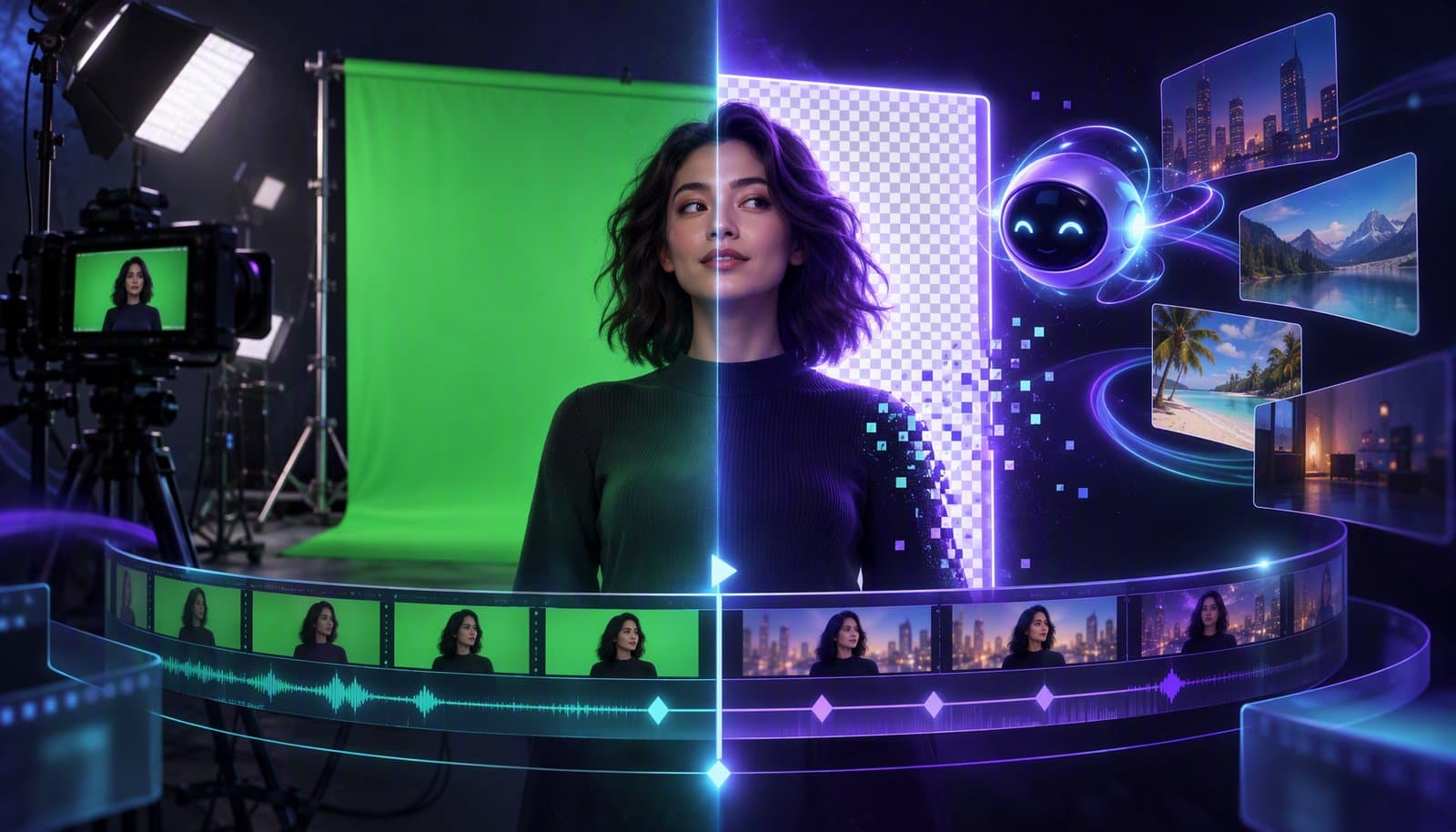
Green screen (chroma key) removes a known backdrop color so you can composite a new background. AI background removal estimates the subject without requiring a dedicated green or blue screen. It still depends on lighting, subject/background contrast, motion, and the model. A well-shot green screen can provide precise control; AI removal can reduce setup. Compare both on difficult moving frames rather than assuming one always produces cleaner edges.
For decades, replacing a video background meant one thing: buy a green cloth, light it evenly, and hope. Now you can drop the background out of footage shot on your couch. But "AI can do it" doesn't mean AI is always better. This guide explains both techniques honestly — how they actually work, where each breaks, and a clear decision framework. The one-line version is in the chroma key glossary entry.
What is a green screen (chroma key)?
A green screen is a solid-colored backdrop — most commonly bright green — placed behind a subject so that, in editing, software can identify that specific color and make it transparent. This process is called chroma keying (keying based on chrominance, i.e., color). Once the green is keyed out, you composite a new background in its place.
You've seen the results everywhere: the TV weather presenter standing in front of a moving map, blockbuster actors in impossible locations, streamers with just their body over their gameplay. All of it is chroma key: shoot against a known color, remove that color, replace with something else.
The technique is old (it descends from earlier "traveling matte" and blue-screen film compositing) and extremely mature. Done well, it can preserve fine edges, but hair, spill, transparency, and motion blur still require careful matting. Kodak describes the earlier travelling-matte process as superimposing foreground action on a separately photographed background.
Why green (and why sometimes blue)?
The backdrop is green or blue for a specific reason: those colors are furthest from human skin tones, so keying them out doesn't accidentally remove parts of the person.
- Green is a common digital-workflow choice. Many cameras use a Bayer sensor with more green sampling sites, but screen selection also depends on wardrobe, spill, lighting, and the scene.
- Blue is still used when the subject must wear green, for nighttime scenes, or in some film work where blue produced cleaner results on film stock. Blue also tends to have less "spill."
The one rule that never changes: the subject cannot wear the key color. Wear a green shirt in front of a green screen and your torso becomes a window to the new background. This is why weather presenters avoid green ties.
What is AI background removal?
AI background removal uses a machine-learning model to look at each frame, recognize what is "subject" (usually a person) and what is "background," and separate them — with no colored backdrop required. You can shoot against your bookshelf, a hotel wall, or a busy room, and the AI cuts you out.
Under the hood, tools may use segmentation to classify foreground pixels and matting to estimate partial transparency around hair or blurred edges. Some use information from earlier frames rather than treating each frame independently: Robust Video Matting is one documented example of temporal guidance. These techniques can reduce manual rotoscoping, but the training data, supported subjects, and quality vary by model.
This is a form of AI visual understanding: the model "sees" the subject rather than relying on a specific color. That's the fundamental difference — chroma key keys on color; AI keys on understanding what a person is.
How each technique works
The mechanics explain the trade-offs, so here's the short version of both:
Chroma key samples the backdrop color and makes every pixel matching that color (within a tolerance) transparent. It's deterministic and fast, but it depends entirely on the backdrop being an even, consistent color. Wrinkles, shadows, and uneven lighting create patches of slightly different green that the key either misses (leaving green fringes) or over-removes (eating into the subject).
AI background removal estimates a foreground mask or matte. It does not need a known key color, but subject/background similarity still matters. Hair, glasses, motion blur, and semi-transparent objects can produce errors. A model with insufficient temporal consistency can flicker or "chatter" between frames, even if an individual still looks clean.
Green screen vs AI background removal: the comparison
Here's the honest side-by-side for 2026:
| Factor | Green screen (chroma key) | AI background removal |
|---|---|---|
| Physical setup | Requires a backdrop + even lighting | No dedicated colored screen; plan subject separation |
| Cost | Cloth/paint, stands, lights | Software only |
| Edge/hair quality | Excellent when lit perfectly | Good and improving; can struggle on fine hair |
| Lighting demands | Even backdrop lighting is important | A well-lit, distinct subject helps the model |
| Space needed | Room for a backdrop behind + away from subject | No screen rig; allow space for useful separation |
| Consistency | Can be stable with controlled capture | Depends on model and temporal handling |
| Speed to result | Setup plus keying and refinement | Model, device, resolution, and refinement dependent |
| Best subject | Anything, incl. props (avoid key color) | People (models are person-optimized) |
| Real-time (streaming) | Yes (OBS chroma key) | Yes (increasingly, on-device) |
| Reflective/transparent objects | Can offer more control; still challenging | Model-dependent; test glass, smoke, and fine detail |
The practical trade-off is capture control versus setup flexibility. A green screen gives the keyer a known color; AI removal reduces the need for that backdrop. Neither guarantees the cleanest result or a fixed processing time. Test the actual footage, resolution, and replacement background.
When to use green screen vs AI background removal
Use this decision framework:
Choose a green screen when:
- You need broadcast- or film-grade edges (fine hair, precise compositing)
- You're compositing complex scenes or VFX where every edge matters
- You have a dedicated, repeatable filming space you can light properly
- You're doing high-volume production where setup cost amortizes
- The subject includes tricky materials (glass, sheer fabric, smoke)
Choose AI background removal when:
- You're shooting on location, traveling, or lack space for a backdrop
- You need speed and can't spend an hour lighting a screen
- The result is for social, short-form, or web, and a preview at delivery size shows acceptable edges
- You're a solo creator, streamer, or podcaster without a studio
- You want to remove or blur a background quickly for privacy or focus
A practical middle path: many creators shoot against a plain (non-green) wall and let AI handle removal — getting most of green screen's benefit (a simple background) without the cloth, spill, and lighting headaches. A hybrid workflow can also help if the tool supports it; test rather than assuming every AI model benefits from a green screen.
Common background-removal problems (and fixes)
Whichever method you use, the failure modes are predictable:
Green screen problems:
- Green spill — green light bounces onto the subject's edges and hair, tinting them. Fix: light the subject separately, keep them well away from the screen, and use spill suppression in your keyer.
- Uneven backdrop lighting — shadows and hotspots create multiple "greens" the key can't handle. Fix: light the screen evenly and separately from the subject.
- Wrinkles and creases — cloth wrinkles cast tiny shadows. Fix: iron/steam the cloth or use painted walls.
- Subject wearing the key color — instant hole. Fix: wardrobe check.
AI removal problems:
- Edge flicker/chatter — the mask wobbles frame-to-frame. Fix: use a temporally-stable model; some tools smooth the mask over time.
- Hair and glasses artifacts — fine or transparent detail confuses the model. Fix: better contrast between subject and background, or manual mask refinement.
- Fast motion / motion blur — blurred edges are hard to segment. Fix: higher shutter/frame rate discipline, or accept softer edges.
- Low subject-background contrast — a person in a green shirt against green foliage confuses even AI. Fix: create separation with lighting or position.
How to get a clean result
Whether you're keying or using AI, the prep is what determines quality.
Step 1: Create separation between subject and background
For green screen, stand well in front of the screen (reduces spill and shadows). For AI removal, avoid backgrounds that blend with your clothing or hair. Separation is everything for both.
Step 2: Light the subject and background independently
For green screen, light the backdrop evenly and separately from the subject so it's one flat color. For AI removal, just make sure the subject is well-lit and distinct from the background.
Step 3: Mind wardrobe and materials
Don't wear the key color for green screen. For both methods, know that fine hair, glasses, and transparent props are the hardest edges.
Step 4: Key or segment
Apply chroma key (sample the color, adjust tolerance and spill suppression) or run AI background removal. Preview on the hardest frames — fast motion, hair, and edges.
Step 5: Refine edges and add the new background
Tighten the matte, feather edges slightly so the composite doesn't look "cut out," and add your replacement background or blur. Match the color grade and lighting direction of the subject to the new background, or the composite reads as fake.
Common mistakes
- Standing too close to the green screen. The #1 cause of spill and shadows.
- Lighting the screen and subject as one. They need separate lighting to key cleanly.
- Expecting AI to fix a bad shot. Low contrast and heavy motion blur defeat even good models.
- Hard, un-feathered edges. A razor-sharp cutout looks pasted on; feather slightly.
- Ignoring color match. A cool-lit subject on a warm background looks composited. Grade to match.
- Not previewing motion frames. Both methods look fine on a still and fall apart on movement — check the hardest frames.
How AI video editors handle background removal
AI background removal has moved from a specialist VFX task to a one-click feature, and modern browser-based editors run it without any plugin or render farm.
Models may run locally, on a GPU through technologies such as WebGPU, or on a server. WebCodecs handles supported media encoding and decoding, not subject segmentation itself. Real-time results depend on the model, hardware, and resolution. Where a tool supports removal, blur, or replacement, inspect every frame before relying on it for privacy; an imperfect mask can reveal the original background.
For Loopdesk (disclosure: Loopdesk is our product), consult the documented capabilities before planning a background-removal workflow. Prompt-driven editing does not by itself establish a segmentation, blur, or replacement feature. If the required matte controls are unavailable, prepare the composite in a suitable tool before continuing the edit. It fits the titles-and-finishing side of the pipeline. For related cleanup and object-level edits, see AI video inpainting tools. For demanding hair detail and complex compositing, compare a properly lit green-screen workflow with the available matting tools and budget time for refinement. Background removal is one entry in the full video editing glossary.
Frequently Asked Questions
What is the difference between green screen and AI background removal?
Chroma key removes a known backdrop color. AI removal estimates the foreground without requiring a dedicated colored screen. Both depend on the footage: lighting, contrast, motion, and difficult edges affect the result, and either may need refinement.
Is AI background removal as good as green screen?
It depends on the footage, model, and delivery requirements. A well-shot green screen gives precise keying control; AI can reduce backdrop setup. Compare hair, motion blur, transparency, and temporal stability on moving footage at the final delivery size.
Why are green screens green?
Saturated green is distinct from typical skin tones, and many digital cameras have more green sampling sites. Blue can suit a subject wearing green or a different lighting setup. Choose a key color that separates from the subject and control reflected spill.
Do I need a green screen if I have AI background removal?
Not necessarily. A plain background with good subject separation may be sufficient, but test your model and footage. A controlled green-screen setup can help demanding composites; it does not eliminate the need to refine hair, blur, or transparent materials.
Why does my green screen key look bad?
The most common causes are green spill (standing too close to the screen), uneven backdrop lighting creating multiple shades of green, wrinkles casting shadows, or the subject wearing the key color. Light the screen evenly and separately, keep the subject well in front of it, and use spill suppression.
Why does AI background removal flicker at the edges?
Ambiguous edges can change between frames if the model lacks temporal consistency. Hair, glasses, and motion blur are common challenges. Better separation and a temporally informed model may help, but review moving footage and refine difficult sections.
Can AI background removal run in real time?
Some implementations can, but speed depends on the model, hardware, resolution, and processing pipeline. A research result or a GPU API does not guarantee real-time performance in a particular browser editor. Test the intended setup.
Planning a composited video? Check the Loopdesk feature specifications for the operations you need, prepare and review the background treatment, then open Loopdesk for the rest of your edit.