
J-Cut and L-Cut Explained: The Invisible Edits That Make Video Feel Professional (2026)
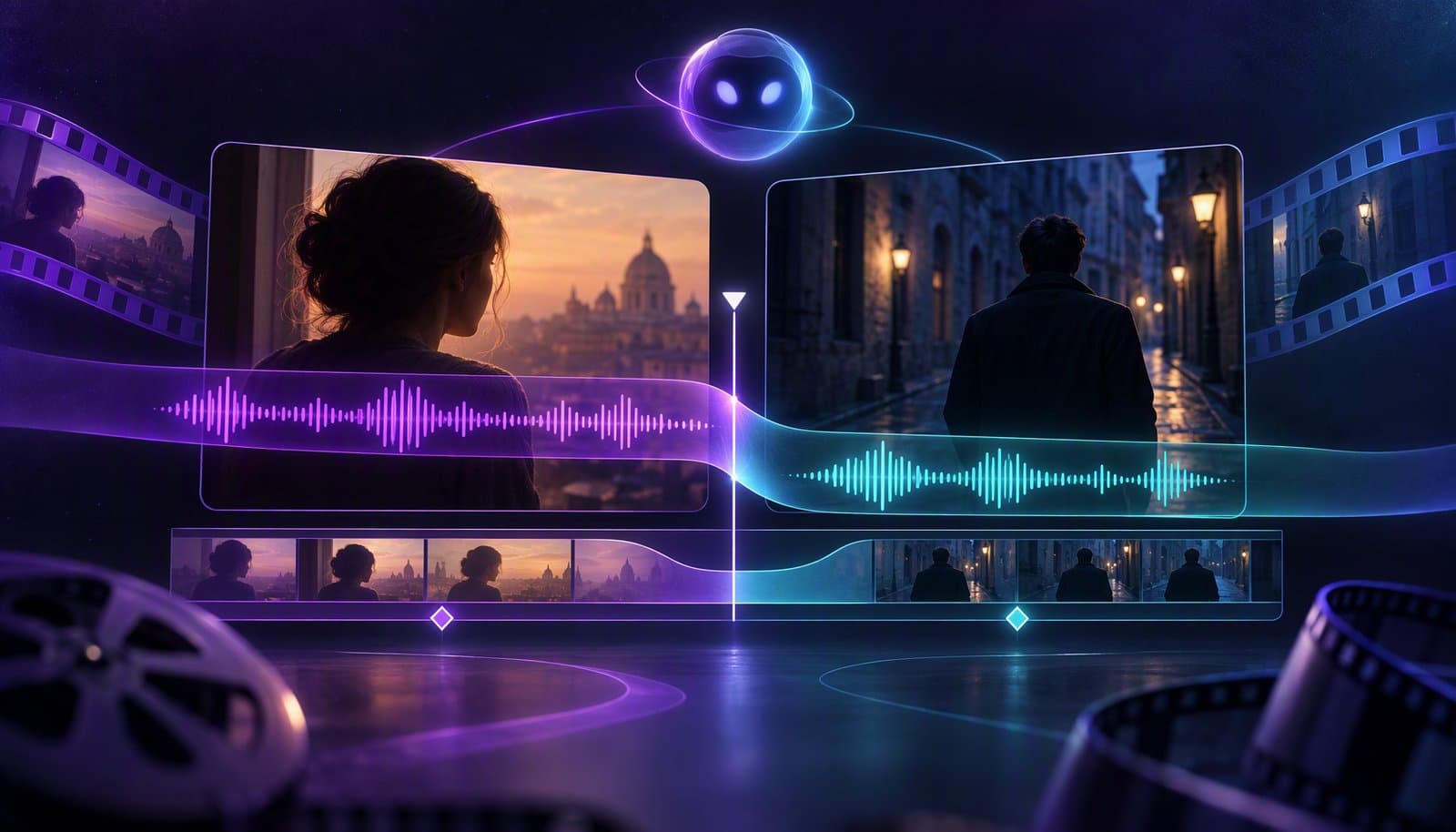
A J-cut is an edit where the audio of the next shot starts before its video appears — you hear it before you see it. An L-cut is the reverse: the audio of the current shot continues after the video has cut to the next shot — you keep hearing it after you've moved on. Both are "split edits," where sound and picture change at different moments, and they can help dialogue and scene changes feel continuous rather than abrupt.
If your dialogue cuts feel abrupt, split edits are one technique to try. J-cuts and L-cuts can make transitions unobtrusive, or deliberately draw attention to an incoming sound or a listener's reaction. This guide explains both in plain terms, why they have those odd letter names, when to use each, and the wider family of cuts every editor should know. This is the natural sequel to our A-roll, B-roll, and C-roll guide — quick versions live in the J-cut definition and L-cut definition.
What is a J-cut?
A J-cut is a split edit where the audio from the next clip begins before its video appears. You hear the incoming sound while still looking at the outgoing picture, and then the picture catches up.
The everyday example: in a movie, two characters are talking in a kitchen, and a second before the scene cuts, you hear the sound of a car engine. Then the picture cuts to the car driving away. The audio led the video. That's a J-cut.
In interviews and documentaries, J-cuts are constant: you hear the next person start answering while you're still seeing the previous shot or some B-roll, then the picture cuts to them. The sound pulls you into the next moment before you get there, so the transition feels motivated rather than abrupt.
What is an L-cut?
An L-cut is the reverse: the audio from the current clip continues playing after the video has already cut to the next clip. You've moved on visually, but you're still hearing the previous sound trailing behind.
The everyday example: a character finishes a sentence, and while they're still talking, the picture cuts to the listener's reaction. You hear the speaker over the shot of the person listening. The audio trailed into the next shot. That's an L-cut — and it's how nearly every well-edited dialogue scene handles reaction shots.
L-cuts are what let an editor show you how a line lands — cutting to a reaction while the words are still in the air — instead of robotically switching to whoever is speaking. It's the difference between a conversation that feels alive and one that feels like a ping-pong match.
Why are they called "J-cut" and "L-cut"?
The names come from what the edit looks like on the timeline, where video sits on one track and audio on the track below it.
- In a J-cut, the audio (bottom track) extends to the left — earlier in time — beyond where the video (top track) starts. The shape of the incoming clip's blocks resembles the letter J: the audio hooks back under and to the left.
- In an L-cut, the audio (bottom track) extends to the right — later in time — beyond where the video (top track) ends. The shape of the outgoing clip resembles the letter L: the audio forms the long foot extending to the right.
That's the whole mnemonic. J = audio leads (hooks back left, "hear it first"). L = audio trails (extends right, "hear it after"). Once you've seen the shapes on a timeline once, you never forget which is which.
J-cut vs L-cut
Here's the side-by-side. The core difference is direction: which comes first, the sound or the picture.
| J-cut | L-cut | |
|---|---|---|
| What happens | Audio of next shot starts before its video | Audio of current shot continues after video cuts |
| Viewer experience | Hear it, then see it | See the next shot, still hearing the last |
| Timeline shape | Audio hooks left (J) | Audio extends right (L) |
| Classic use | Leading into a new scene, anticipation | Reaction shots, letting a line breathe |
| Feeling created | Anticipation, motivation, "pull" | Continuity, connection, emotional weight |
Both are types of split edit — an edit where the audio and picture boundaries differ. "Checkerboarding" usually describes an arrangement across tracks or film rolls, not a precise synonym for a J-cut or L-cut. In practice, a single dialogue scene is full of both, layered so densely that the audience perceives one seamless flow.
Why split edits make editing "invisible"
An edit where audio and video change at the same frame can feel abrupt if both sources change noticeably. A straight picture cut is not inherently jarring, however; shared ambience, matched action, and dialogue timing can make it work. Human conversation doesn't work that way: in real life, you glance at a speaker before they finish, or keep watching someone after they've stopped talking.
Split edits mimic that natural attention. By offsetting the audio and video cuts by even half a second, the transition stops feeling mechanical. The viewer's ear is carried across the cut by continuous sound while their eye moves to a new image — or vice versa. This is the foundation of what editors call invisible editing: cuts you feel but never consciously see.
It's also why the same footage can feel amateur or professional depending only on where the audio cuts fall. Same clips, same order — offset the sound, and suddenly it flows.
The full family of essential cuts
J-cuts and L-cuts live in a broader vocabulary of cuts. Knowing the whole set makes you fluent. Here are the essential types every editor should recognize:
| Cut type | What it is | When to use |
|---|---|---|
| Straight cut | An immediate picture change without a dissolve or wipe; audio may cut with it or overlap | Neutral default; action, montage, quick pace |
| J-cut | Audio leads the video | Scene entrances, anticipation, interviews |
| L-cut | Audio trails after the video cuts | Reaction shots, dialogue, emotional beats |
| Jump cut | Same subject, small time jump, visible "jump" | Vlogs, condensing time (intentional) or hiding removals |
| Match cut | Two shots linked by similar shape, motion, or composition | Elegant transitions, thematic links |
| Cutaway | Cut to something outside the main action, then back | Cover edits, add context, hide a jump cut |
| Cross dissolve | One shot fades into the next | Passage of time, dreamy or gentle mood |
| Smash cut | Abrupt cut between contrasting shots/sounds | Comedy, shock, hard tonal shifts |
| Cutting on action | Cut during a movement, matched across shots | Hide the cut inside motion; seamless action |
Two quick clarifications people always ask about:
- A jump cut is not an L-cut or J-cut. A jump cut is a visible discontinuity in the same shot; split edits offset the audio and video boundaries and can make a transition unobtrusive. See our A-roll/B-roll guide for how B-roll hides jump cuts.
- A match cut is about visual similarity, not audio timing — famously the bone-to-spaceship cut in 2001: A Space Odyssey.
When to use J-cuts and L-cuts
Use J-cuts to pull the viewer forward and L-cuts to carry them across a cut. Concretely:
Reach for a J-cut when you want anticipation or a motivated entrance:
- Leading into a new scene (hear the location before you see it)
- Starting an interview answer while still on B-roll or the previous shot
- Building tension — a sound arrives before its source is revealed
- Transitioning between video sections so the next topic's audio "announces" itself
Reach for an L-cut when you want continuity or emotional weight:
- Cutting to a reaction while someone is still speaking
- Keeping a narrator's voice going while the picture moves to what they're describing
- Letting a line of dialogue "land" on the listener's face
- Smoothing the end of a scene so the audio gently hands off to the next
For talking-head and interview content specifically, L-cuts over B-roll are your workhorse: the person keeps talking (audio) while you show what they're describing (video). Combined with J-cuts to enter each new point, they turn a static talking-head into something that breathes. This is the audio-side complement to the picture-side B-roll technique.
How to make a J-cut and an L-cut
Both are simple to execute once you understand the offset. Here's the manual process in any timeline editor.
Step 1: Unlink audio and video
Use independent audio and video edge trims, or disable linked selection where needed. Preserve each clip's source sync: extending an audio boundary is different from sliding the whole audio clip out of sync. You also need unused source media (handles) beyond the edit point. Detaching audio is not always necessary: Apple's Final Cut Pro split-edit guide demonstrates expanding audio for independent trims while keeping picture and sound attached and in sync.
Step 2: For a J-cut, extend the next clip's audio earlier
Drag the start of the incoming clip's audio to the left, so it begins before the incoming video. Now you hear the next shot before you see it.
Step 3: For an L-cut, extend the current clip's audio later
Drag the end of the outgoing clip's audio to the right, past where its video cuts, so the sound continues over the next shot.
Step 4: Tune the overlap
Start with a small offset — often 0.5 to 1.5 seconds — and adjust by feel. Too little and it reads as a straight cut; too much and the mismatch becomes noticeable. Let dialogue rhythm guide you.
Step 5: Mind the audio levels
Where audio overlaps, make sure the two sources don't clash. Duck or fade one under the other so the transition stays clean — the same loudness discipline that governs music under speech.
Common J-cut and L-cut mistakes
- Using one audio boundary pattern mechanically. Try split edits when a reaction or sound bridge serves the scene; aligned cuts are valid too.
- Overlapping too much. A five-second offset stops being invisible and starts being confusing.
- Clashing audio in the overlap. Two people or two music beds fighting during the split. Duck one.
- Confusing a J-cut with a jump cut. One describes an audio/video timing offset, the other a visible time jump.
- Forgetting room tone. Overlapping audio needs consistent background ambience or the seam becomes audible.
- Applying them mechanically. Split edits should serve the moment (anticipation, reaction), not be sprinkled at random.
How AI video editors handle J-cuts and L-cuts
Independent trims and audio-level checks can take time, and AI video editing may assist where the tool supports split edits. Transcription or a generic transition preset alone does not establish that capability.
Transcripts and speaker detection can suggest dialogue boundaries, but a useful split edit also needs suitable picture, source handles, and audio continuity. A system would need independent audio/video edit controls to apply the offset. After silence removal, B-roll can cover a jump cut; an audio overlap alone does not erase the visual discontinuity.
For Loopdesk (disclosure: Loopdesk is our product), the feature specifications document prompt-driven cuts and transitions. That is not the same as verified automatic reaction-shot selection or independently adjustable J/L offsets. Check the available controls; if the required split trim is unavailable, use an editor that exposes it. It fits into the fine-cut stage of the editing process, where seams get polished. The judgment — which reaction to hold and when to build anticipation — still requires reviewing both picture and sound. J-cuts and L-cuts are one stop on the full video editing glossary.
Frequently Asked Questions
What is a J-cut in video editing?
A J-cut is a split edit where the audio from the next clip starts before its video appears — you hear the next shot before you see it. It's named for the J shape the audio makes on the timeline, hooking earlier in time than the video.
What is an L-cut in video editing?
An L-cut is a split edit where the audio from the current clip continues after the video has cut to the next shot — you keep hearing the previous sound after the picture has moved on. It's named for the L shape the trailing audio makes on the timeline.
What is the difference between a J-cut and an L-cut?
Direction. In a J-cut, audio leads the video (hear it, then see it). In an L-cut, audio trails the video (see the next shot while still hearing the last). Both are split edits where sound and picture change at different moments.
Why are they called J-cuts and L-cuts?
Because of their shapes on the timeline. With video on top and audio below, a J-cut's incoming audio hooks back to the left (like a J), and an L-cut's outgoing audio extends to the right (forming the foot of an L).
When should I use a J-cut vs an L-cut?
Use a J-cut to create anticipation or a motivated entrance into a new scene or speaker. Use an L-cut for reaction shots and to let dialogue land, keeping audio continuous while the picture moves. Interview and talking-head edits use both constantly.
Is a J-cut the same as a jump cut?
No. A J-cut starts the next shot's audio before its picture, which can make a transition unobtrusive. A jump cut creates a visible discontinuity within a shot or similar framing. One describes audio/video timing; the other describes a visual jump.
What is a split edit?
A split edit is any cut where the audio and video transition at different points rather than the same frame. J-cuts and L-cuts are the two types of split edit. They are the foundation of smooth, "invisible" editing.
Can AI add J-cuts and L-cuts automatically?
Only if the tool implements independent audio/video edits and has suitable source handles. A transcript or speaker labels alone do not supply that feature. Review the offsets, source sync, reaction shots, and audio continuity rather than assuming a smooth-transition command creates split edits.
Planning a dialogue edit? Check the Loopdesk feature specifications, then open Loopdesk for supported editing operations. Use independent split trims in a suitable editor when your scene needs precise J/L offsets.