
How to Turn a Webinar Into 10 Short Clips With AI (2026)
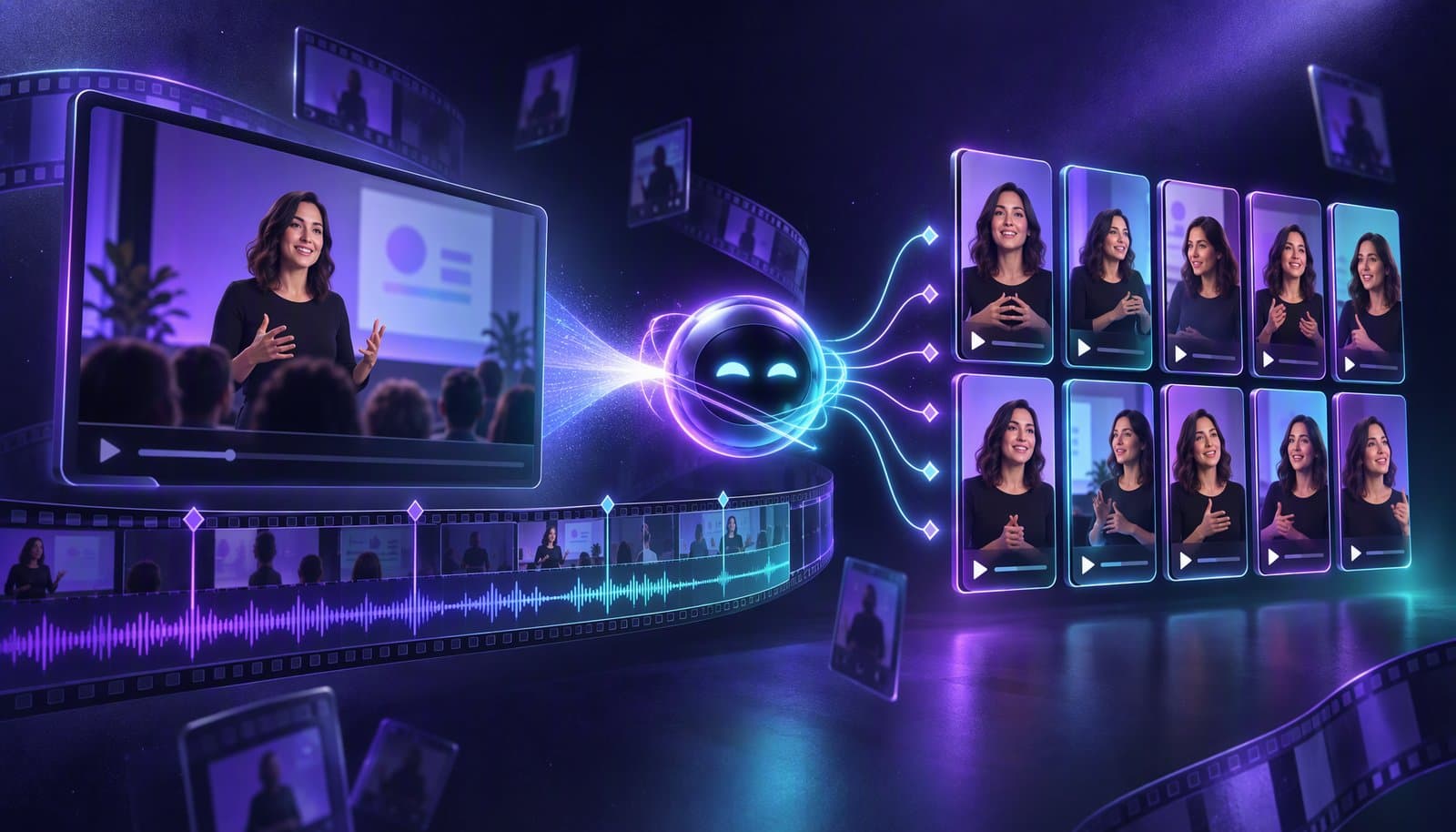
To turn a webinar into 10 short clips with AI, upload the recording, ask the AI for ten standalone moments (hooks, claims, data points, answered objections and demo before-and-afters), trim each to 20-90 seconds, auto-reframe to 9:16 with the speaker centered, add captions, apply your brand template and batch-export a file per platform.
A one-hour webinar often holds enough material for ten clips, but the good moments sit between slide changes, housekeeping and audience questions. This is the webinar-specific version of our long-form repurposing workflow: which moments to pick, how to handle slides in a vertical frame, current platform specs, and how to measure results.
If the replay still has dead air or uneven audio, first optimize the webinar recording itself. Every short-form video you cut from it inherits those problems.
What makes a webinar moment clip-worthy?
A webinar moment is clip-worthy when it makes sense to someone who never registered. It opens on a strong line, carries one idea, and ends on a payoff, not on "as you can see on the next slide." Hooks, sharp claims, data points, answered objections and demo before-and-afters are the moment types most likely to pass that test.
| Moment type | What it sounds like | Why it works as a clip | Ideal length |
|---|---|---|---|
| Hook | A blunt line or contrarian take: "Most onboarding emails are written for the wrong person." | Gives a scrolling viewer a reason to stop | 15-30 seconds |
| Claim | A clear point of view backed by one reason | One idea, easy to agree or argue with | 20-45 seconds |
| Data point | A figure from the speaker's research or a customer result, with its source | Quotable; the number becomes the on-screen headline | 20-40 seconds |
| Objection answered | An audience question about price, security, migration or fit, plus the answer | Answers what buyers ask sales before the call | 45-90 seconds |
| Demo before/after | The messy starting state, the action, the result on screen | Shows the outcome instead of describing it | 30-75 seconds |
| Customer story | A guest describing the problem, the change and the result | Social proof in the customer's own words | 45-90 seconds |
These lengths are editorial starting points, not platform rules. Cut at the end of the idea.
The standalone test
Before a moment makes the list, ask three questions:
- Does the first sentence work without the slide or question that came before it?
- Is there exactly one idea, with a clear start and finish?
- Does it avoid "like I said earlier," "on this slide" and other references a new viewer can't see?
If the first check fails, a one-line text card such as "Q: How long does migration take?" can replace the original question audio.
A 10-clip mix for a 60-minute webinar
Ten clips of one type feel repetitive. A balanced batch from one session might be:
- 2 hooks or claims from the opening and the main argument
- 2 data points, each with the source shown on screen
- 3 answered objections from the Q&A
- 2 demo before-and-afters
- 1 customer story, if a customer spoke
Adjust to what the session contains: a panel leans toward claims, a product launch toward demos.
What about moments that live on a slide?
Slides make webinar clips harder than podcast clips. Cropping a 16:9 slide to 9:16 throws away most of its width, so charts become unreadable. You have three options:
- Stack the layout: speaker on top, slide below, both scaled to fit.
- Rebuild the key number as text: show the one figure that matters in large type and drop the slide.
- Use a squarer format: for LinkedIn and Instagram feeds, a 1:1 or 4:5 version keeps more of the slide.
How do you turn a webinar into 10 clips with AI?
Run the same six steps in any AI clipping tool or editor: upload the recording, ask for ten standalone moments, reframe each to 9:16, caption it, apply a brand template and batch-export. The AI finds and formats candidates in bulk. A person still picks the final ten, fixes jargon in captions and checks every cut.
Full disclosure: Loopdesk is our product. The examples below use Loopdesk and its AI agent, Aura, and each step notes what to check in other tools. Still choosing one? See our AI clipping tools comparison.
Step 1: Upload the full recording
Start from the edited replay, not the raw platform recording. If you only have the raw file, trim the waiting room, housekeeping and long pauses first, so the AI isn't scoring dead air.
In Loopdesk: upload the full webinar, MP4 or MOV, from your computer, Google Drive or Dropbox. There's no need to split it into parts: Loopdesk transcribes the whole session and detects scenes and speakers, so every step below works on the complete recording.
In any tool: check the upload length and file-size limits, and confirm you get a searchable transcript.
Step 2: Ask for 10 high-retention moments
A vague "find the best parts" can return moments that are lively but meaningless out of context. Give the AI your moment types and constraints.
In Loopdesk: ask Aura something like this:
Find 12 standalone moments in this webinar: hooks, data points, answered audience questions and demo before-and-afters. Each should be 20-90 seconds, start on a complete sentence and make sense without the slides.
Aura suggests highlight clips, and every suggestion comes with a preview. Watch each one, then accept, adjust or reject it until you have your ten.
In any tool: treat the AI's ranking as a shortlist, not a forecast. A score shows which moments the model prefers, not how many viewers will keep watching; our explainer on AI virality scores covers why. Ask for 12-15 candidates and keep the ten that pass the standalone test.
Step 3: Auto-reframe each clip to 9:16
Aspect ratio reframing crops a 16:9 recording into a vertical video that follows the speaker. It suits talking-head segments, not full-screen slides, so decide clip by clip.
In Loopdesk: "Reframe these clips to 9:16 and keep the speaker centered." Loopdesk's reframing converts between 16:9, 9:16 and 1:1 and repositions captions for each format, so slide-heavy clips can go out as 1:1 instead.
In any tool: check the first and last seconds of every reframed clip, plus each speaker change or screen-share switch.
Step 4: Add captions and fix the jargon
Many people scroll feeds with the sound off, so burned-in captions carry the clip. Auto captions get you most of the way; in B2B, the fixes that matter are product names, acronyms, customer names and numbers.
In Loopdesk: "Add bold captions in our brand colors, one phrase at a time." Captions cover 108 languages, including right-to-left scripts, which helps regional teams localize the same clip.
In any tool: proofread every caption before export, especially names and numbers.
Step 5: Apply your brand template
A brand template makes ten clips look like one series: logo position, caption font and color, a title card, and an end card pointing to the full replay.
In Loopdesk: upload your logo as a transparent PNG or SVG, then give Aura one instruction covering logo position, caption style and end card. Batch editing applies it across every clip in one job.
In any tool: preview each branded clip on a phone. LinkedIn's help center asks creators to keep key elements, text and logos away from the frame edges so the interface doesn't cover them.
Step 6: Batch-export one file per platform
Export each clip once per destination rather than one generic file; the spec table below covers the differences.
In Loopdesk: use one-click export to get a version of every clip for each platform, at up to 4K: vertical for Reels and Shorts, square for Instagram feeds, and a LinkedIn-ready version in 9:16, or 1:1 for slide-heavy clips. Reframing keeps the speaker centered in each format. 4K exports are unlimited, and no plan adds a watermark.
In any tool: name files consistently, for example 2026-10-webinar_clip-03_objection-pricing_linkedin.mp4, so results map back to moment types later.
What specs do LinkedIn, Reels and Shorts need for webinar clips?
Export webinar clips as 1080x1920 (9:16) MP4 files at 30 fps and they'll fit all three platforms. The differences are length and captions: YouTube Shorts allows up to 3 minutes, LinkedIn accepts up to 15, and Instagram stops recommending Reels to new audiences past 3 minutes. Burn in captions everywhere.
| Spec (checked October 2026) | LinkedIn video | Instagram Reels | YouTube Shorts |
|---|---|---|---|
| Aspect ratio accepted | 1:2.4 to 2.4:1, so 9:16, 1:1 and 16:9 all fit | 1.91:1 to 9:16 | Square or vertical |
| Export we recommend | 1080x1920 (9:16), or 1080x1080 (1:1) for slide-heavy clips | 1080x1920 (9:16) | 1080x1920 (9:16) |
| Maximum length | 15 minutes | 20 minutes; Reels over 3 minutes aren't recommended to new audiences | 3 minutes |
| Our starting length for webinar clips | 30-90 seconds | 15-60 seconds | 20-60 seconds |
| Captions | Auto captions in 10 languages, or upload an SRT file on desktop; burn captions in for sound-off viewing | Burn captions in and keep them clear of the bottom of the frame | Burn captions in and keep them clear of the bottom of the frame |
| Other notes | Minimum 3 seconds from desktop; 10-60 fps | Minimum 30 fps and 720 pixels | YouTube Studio uploads up to 15 Shorts at a time |
The starting lengths are our editorial recommendations for B2B clips, not platform rules. Limits come from LinkedIn Help, the Instagram Help Center, Meta's Reels size guide and YouTube Help. Platforms change them often, so check current limits before you export a large batch.
B2B webinar clip examples: demo, Q&A and customer story
The three B2B clip formats worth making from almost every webinar are a product demo before-and-after, an answered objection from Q&A, and a customer telling their own story. Each follows the same shape: a cold open on the strongest line, just enough context, the payoff, and an end card pointing to the full replay.
The examples below are illustrative, not real customers.
Product demo clip
Say the webinar covers an expense-approval tool.
- Cold open: the finished result on screen, with a text card reading "Approvals in one click, not five emails."
- Context: the presenter describes the old process in one sentence.
- Payoff: the click-through, cropped tight on the part of the screen that changes.
- End card: "Full demo in the replay," with the link in the post copy.
Full-screen software is too wide for 9:16, so demo clips usually need a manual crop or zoom on the active area rather than speaker tracking.
Q&A objection clip
An attendee asks, "How long does migration take, and who does the work?"
- Put the question on screen as text in the first frame, since attendee audio is often hard to hear.
- Cut the host's "great question" and go straight to the answer.
- End on the concrete next step the speaker gave.
Sales teams can also send these clips when the same objection comes up in a deal.
Customer story clip
A guest customer explains why their team switched.
- Open on the frustration or the result, not on the introduction.
- Keep the customer's own words, and don't cut so tightly that the meaning changes.
- Get written approval before posting, and show their name and title on screen.
How do you measure webinar clip performance?
Measure each clip on whether people kept watching and whether they took the next step. Retention metrics show whether the hook worked; clicks to the replay or registration page show whether the clip did its job. Tag every clip by moment type, then compare types across platforms to decide what to cut next time.
- Retention: audience retention is the clearest signal of whether the opening worked. On YouTube Shorts, "Stayed to watch" shows the percentage of times viewers watched past the first seconds instead of swiping away, and "Engaged views" counts those views. LinkedIn and Instagram report their own view and watch-time figures, with different definitions, so compare clips within a platform first.
- Action: add a tracked link (UTM parameters) to the replay or next registration page in each post to see which clips sent people to the full session.
- Roll-up: keep one row per clip in a cross-platform analytics dashboard or a plain spreadsheet, with moment type, platform, length, retention metric and clicks.
After two or three webinars, that sheet shows which moment types hold viewers on which platform, and the next batch's mix should follow it.
Frequently Asked Questions
How can I use AI to find 10 high-retention clips in a 1-hour webinar?
Upload the full recording, trim the waiting room and housekeeping, and ask for specific moment types: hooks, data points, answered objections and demo before-and-afters of 20-90 seconds each. Keep ten that make sense without slides, then reframe to 9:16 and caption them.
What is the quickest way to turn a webinar recording into a batch of short clips?
Use one tool for the whole chain: find moments, reframe, caption, brand and export in a batch. Save your caption style and brand template once, so every future webinar reuses the same settings without rebuilding them.
What is the best AI platform for finding short-form content inside webinars and podcasts?
It depends on how much editing you need after a clip is found. Highlight-only clippers are fast; full AI editors also let you fix captions, layouts and cuts. Compare options in our AI clipping tools guide. Full disclosure: Loopdesk, our product, is a full editor from $19/month.
How long should webinar clips be for LinkedIn?
LinkedIn accepts videos up to 15 minutes, but 30-90 seconds is a sensible starting range for webinar clips: long enough for one complete idea, short enough to finish in the feed. Compare retention across that range.
Does auto-reframing work on slide-heavy webinars?
It works well on talking-head segments and poorly on full-screen slides, because a 9:16 crop removes most of a 16:9 slide. For slide moments, stack the speaker above the slide, rebuild the key number as on-screen text, or export a 1:1 version instead.
Do I need permission to post clips from a webinar?
Get approval from every guest speaker and customer who appears, ideally in the speaker agreement. Remove or blur attendee names, chat panels and email addresses visible in Q&A screens, and make sure any slide content you show is cleared for public use.
Have a webinar replay sitting in a folder? Open Loopdesk, upload it, and ask Aura for your first five moments. Plans start at $19/month, and every export is watermark-free.