
How to Edit Multicam Footage: A Step-by-Step Guide (2026)
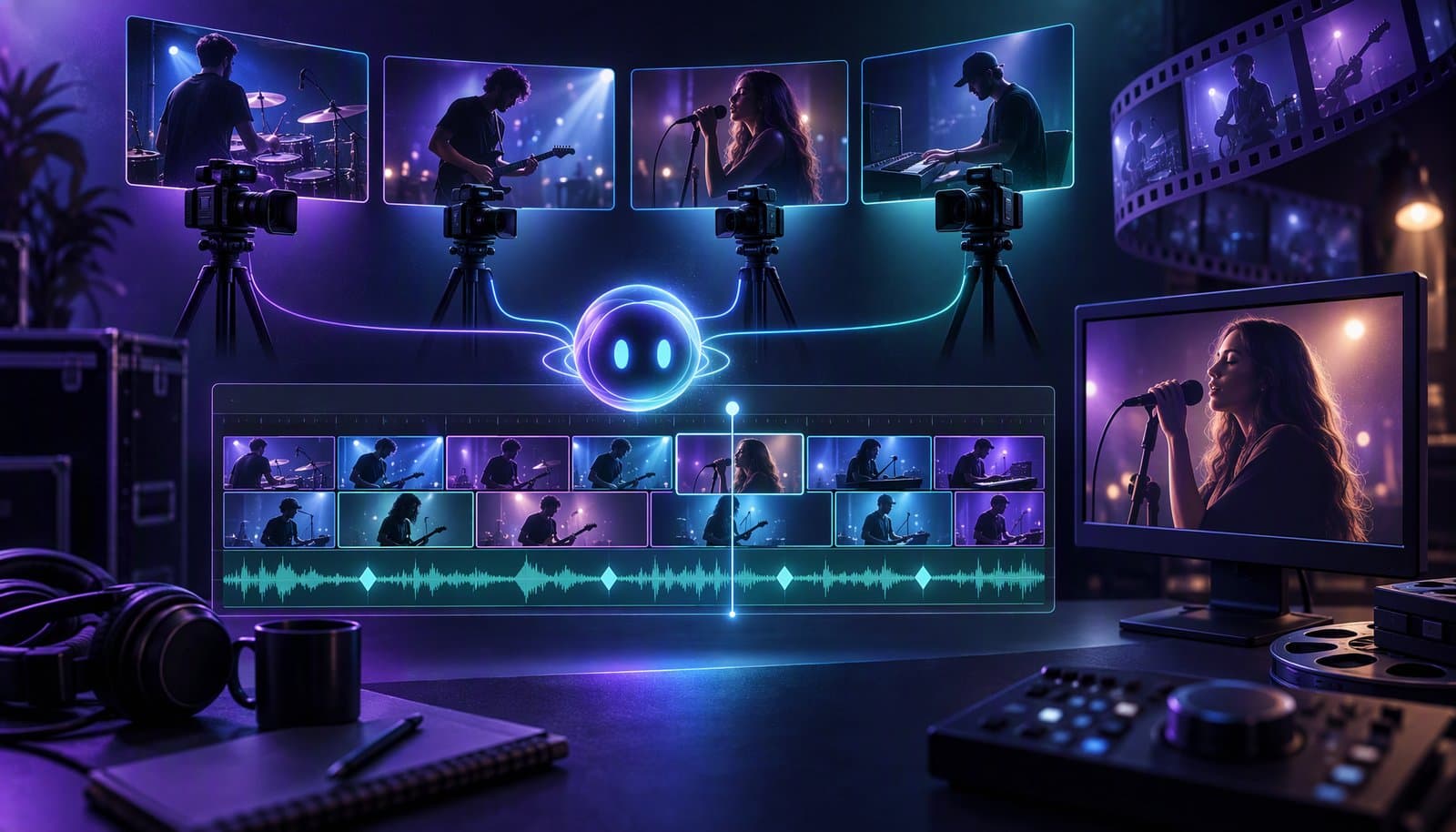
To edit multicam footage, record every camera with sync in mind (a clap or shared timecode, matching frame rates, audio on every device), sync the angles by waveform or timecode, and group them into one multicam clip. Then play it back and switch angles live, refine the switch points, color-match the cameras, choose the cleanest audio source and export.
Multicam editing sounds advanced, but the workflow is the same in every major editor: sync, group, switch, refine. This guide walks through it step by step, with the menu names in Premiere Pro, DaVinci Resolve and Final Cut Pro. If you'd rather have software make the switching pass, see our roundup of automatic multicam editing tools; this post is the manual method.
Menu names checked October 20, 2026 against Adobe's Premiere help, Blackmagic Design's DaVinci Resolve 21 Reference Manual and Apple's Final Cut Pro User Guide (links under Sources). Adobe now calls Premiere Pro simply "Adobe Premiere," and menus move between versions, so confirm them in yours.
What is multicam editing?
Multicam editing is a workflow for footage of one event recorded on two or more cameras at the same time. You sync the angles so they share one clock, then cut between them as if you were directing a live show: wide shot, host close-up, guest close-up, back to the wide. The short definition is in our multicam editing glossary entry.
It's the standard way to edit podcasts, interviews, panels, concerts, weddings and live events. Without a multicam clip, you'd stack every angle on its own track and toggle them on and off by hand, which is manageable with two cameras and miserable with four.
Blackmagic's manual describes the process in three parts: create multicam clips from the individual camera angles, put them in a timeline, then turn on the Multicam Viewer and cut "as if you were a live multi-camera director." Premiere Pro and Final Cut Pro follow the same shape.
Where are the multicam tools in Premiere Pro, Resolve and Final Cut Pro?
| Task | Premiere Pro | DaVinci Resolve | Final Cut Pro |
|---|---|---|---|
| Build the multicam clip | Select clips in the Project panel, then Clip > Create Multi-Camera Source Sequence | Select clips in the Media Pool, right-click, then Create Multicam Clip Using Selected Clips | Select clips in the browser, then File > New > Multicam Clip |
| Sync options | In points, Out points, timecode, clip markers or audio | Angle Sync: In, Out, Timecode, Sound or Marker | Automatic (with optional "Use audio for synchronization"), Timecode, Start of First Clip, First Marker on the Angle |
| See all angles | Program Monitor Settings (wrench) menu > Multi-Camera | Source Viewer mode drop-down > Multicam | View > Show in Viewer > Angles (Shift-Command-7) |
| Cut while playing | Press a camera's number key | Click an angle or press 1 to 9 | Click an angle or press its number key |
| Change an angle without adding a cut | Not covered in the Adobe pages we checked | Option-click, Option-1 to 9, or right-click > Switch Multicam Clip Angle | Option-click or Option plus the number key |
How to edit multicam footage, step by step
Step 1: Shoot for multicam
Good multicam editing starts on set. Apple's multicam workflow guide recommends these, and they apply to any editor:
- Use shared or jam-synced timecode if your cameras support it. Resolve and Final Cut can sync on timecode alone.
- Give every camera a sync cue if you don't have timecode: a slate, a loud clap in view of all cameras or a camera flash.
- Record audio on every camera, even with the built-in mic. Waveform sync needs it, and Apple notes that clear audio recordings give the best results.
- Match frame rates and clocks. Set every camera to the same frame rate, and set the date, time and time zone on each. Mixed rates make sync and playback harder; see frame rate explained.
- Keep a wide safety shot rolling for the whole session. It covers crosstalk, mistakes and any angle that drops out.
- Re-sync after every restart. If a camera stops, clap again when it starts so the new clip has its own sync point.
Step 2: Organize and name your angles
Put each camera's clips in its own folder or bin and name them by angle, such as cam-a-wide, cam-b-host and cam-c-guest. Final Cut Pro can assemble angles from Camera Name or Camera Angle metadata, and Resolve can name angles from clip names or metadata, so a few minutes of naming saves confusion later. For long recordings or heavy 4K files, create proxies before you start; see proxy editing explained.
Step 3: Sync the angles by audio or timecode
Pick the sync method that matches how you shot:
- Timecode if every device recorded shared, jam-synced timecode. Blackmagic describes it as a fast sync "that's as accurate as the timecode is."
- Audio waveform if every camera recorded sound: Sound in Resolve, audio in Premiere Pro, or "Use audio for synchronization" in Final Cut Pro. Apple warns that waveform sync can take a long time to process.
- In points or markers if neither works. Mark the clap or flash frame on every clip and sync on that.
Two checks before you move on. Final Cut Pro can't sync by timecode when the selected clips' drop-frame patterns don't match. And long recordings can drift, so check sync at the start, middle and end. Premiere Pro can leave clips that fail to sync outside its Processed Clips bin, which makes them easy to spot.
Step 4: Build the multicam clip
- Premiere Pro: Select the clips in the Project panel and choose Clip > Create Multi-Camera Source Sequence. Set the sync method, camera names, audio and sequence preset; Adobe's Automatic preset bases the video settings on the Camera 1 clip. Then edit that source sequence into a new sequence, which Adobe calls the target sequence.
- DaVinci Resolve: In the Media Pool, select the clips, right-click and choose Create Multicam Clip Using Selected Clips. Set Angle Sync, Multicam Audio and Angle Name, click Create, then drag the multicam clip into a timeline.
- Final Cut Pro: In the browser, select the clips and choose File > New > Multicam Clip. Name it and choose the sync settings (Use Custom Settings exposes Angle Assembly and clip ordering), click OK, then add it to your project.
If one angle is off, fix it inside the group. In Resolve, right-click the multicam clip in the Media Pool and choose Open in Timeline to see the angles stacked, then nudge the one that's out. In Final Cut Pro, double-click the multicam clip to open the angle editor, where Sync Angle to Monitoring Angle compares waveforms for you.
Step 5: Switch angles live
Turn on the multi-angle view, start playback and cut as the conversation happens:
- Premiere Pro: Open the Program Monitor's Settings (wrench) menu and enable Multi-Camera. The angles appear on the left and your edit on the right. During playback, press a camera's number key to cut to it.
- DaVinci Resolve: Choose Multicam from the Source Viewer mode drop-down. Click an angle, or press 1 to 9, to cut and switch; Option-click to change the current segment without adding a cut. You can view the angles as a 1x1, 1x2, 2x2, 3x3 or 4x4 grid.
- Final Cut Pro: Choose View > Show in Viewer > Angles. Click an angle or press its number to cut and switch, and hold Option to switch without cutting.
Don't aim for perfection on this pass. Cut on instinct, keep playing and fix it in the next step.
Step 6: Refine the switches
Now treat the multicam edit like any other edit:
- Move switch points with roll edits so each change lands on a breath or the end of a sentence. Our timeline guide explains roll, slip and slide edits.
- Change the angle of a segment without re-cutting: right-click > Switch Multicam Clip Angle in Resolve, or Option-click an angle in Final Cut Pro.
- Go wide when people talk over each other or laugh together.
- Hold through short interjections. Don't cut on every "yeah," and use reaction shots sparingly. More on conversation pacing in how to edit a video podcast.
- Check hands and eyelines at each switch. A gesture that starts in one angle should finish in the next.
Step 7: Color-match the angles
Different cameras rarely match out of the box, and viewers notice when a face changes color at every cut. Pick a hero camera, correct it first, then match the others to it. Resolve lets you grade each angle separately inside the multicam clip, so every segment from that angle inherits the grade. When you later flatten the clip, Resolve asks whether to copy the multicam grades or retain the grades from the angles.
In any editor, matching white balance, exposure and picture profile on set saves most of this work. If you're new to it, start with our color grading definition.
Step 8: Choose the audio source and export
Pick one clean audio source, usually a dedicated recorder or lavalier mics, and use it under every angle rather than each camera's own mic. Resolve's Multicam Audio setting can use one reference audio track for all angles; Final Cut Pro's angle viewer can switch video only, so the audio stays put; and Premiere Pro's source-sequence dialog includes audio settings. Then:
- Clean and level the dialogue before you export.
- Watch the whole edit once at normal speed, and check sync again at the end.
- Flatten if you're handing off. Resolve's Flatten Multicam Clip removes the unused angles and leaves ordinary clips, which is safer for a colorist or another app.
- Export the master first, then any vertical or short versions.
When should you use automatic multicam switching instead?
Manual switching is best when angle choice is a creative decision: music, comedy timing, sports and narrative scenes. When the rule is simply "show whoever is talking," speaker detection can make the first pass for you.
DaVinci Resolve Studio, the paid version, includes Multicam SmartSwitch. Blackmagic's manual says it analyzes the angles and cuts to the active speaker using audio plus video cues such as lip movement and whether a shot is wide or close, with settings for a minimum edit duration and a wide angle for crosstalk. Our automatic multicam roundup compares the other options.
Loopdesk (disclosure: our product) also offers multicam switching with speaker detection, in the browser, alongside silence removal and captions. Aura's Suggest Edits produces an edit plan you review and apply. Treat it as a first pass, as with any automatic switcher, and check reactions and overlaps yourself. It needs an internet connection and has no offline mode.
Common multicam editing mistakes
- No audio on one camera, so you end up syncing it by eye.
- Mixed frame rates that only show up as stutter after the edit.
- Switching on every word, which makes a calm conversation feel frantic.
- Camera audio at every cut, so the sound changes with the picture.
- Grading segment by segment instead of grading each angle once.
- Never checking the end of a long recording, where drift is worst.
Sources
Read on October 20, 2026. Adobe's help pages blocked direct loading that day, so the Premiere Pro steps rely on Adobe's published help-page summaries; confirm them in your version.
- Adobe Help, "Create multi-camera source sequences in Premiere": https://helpx.adobe.com/premiere/desktop/edit-projects/set-up-multi-camera-sequences-for-editing/create-a-multi-camera-source-sequence.html
- Adobe Help, "Create and edit multi-camera sequences in Premiere Pro": https://helpx.adobe.com/premiere/desktop/edit-projects/set-up-multi-camera-sequences-for-editing/create-and-edit-a-multi-camera-target-sequence.html
- Adobe, Premiere product page (product rename): https://www.adobe.com/products/premiere.html
- Blackmagic Design, DaVinci Resolve 21 Reference Manual, Chapter 49, "Multicam Editing": https://documents.blackmagicdesign.com/UserManuals/DaVinci_Resolve_21_Reference_Manual.pdf
- Apple, Final Cut Pro User Guide: "Multicam editing workflow": https://support.apple.com/guide/final-cut-pro/multicam-editing-workflow-ver10e087fd/mac · "Create multicam clips": https://support.apple.com/guide/final-cut-pro/create-multicam-clips-ver23c764f1/mac · "Cut and switch camera angles": https://support.apple.com/guide/final-cut-pro/cut-and-switch-camera-angles-ver23c76c9c/mac · "Sync and adjust camera angles": https://support.apple.com/guide/final-cut-pro/sync-and-adjust-camera-angles-ver23c76b1a/mac
Frequently Asked Questions
What is multicam editing used for?
Multicam editing is used for any event filmed on two or more cameras at once: podcasts, interviews, panels, weddings, concerts and live events. You sync the angles, then switch between them to build one cut instead of stacking every angle by hand.
How do you sync multicam footage without timecode?
Use the audio. Record sound on every camera, then sync by waveform: Sound in DaVinci Resolve, audio sync in Premiere Pro, or "Use audio for synchronization" in Final Cut Pro. If that fails, mark the clap or flash frame on each clip and sync on In points or markers.
Can you mix frame rates in a multicam clip?
It's better not to. Shoot every camera at the same frame rate when you can. If they differ, set the timeline to your delivery rate and check playback closely for stutter. Final Cut Pro can't sync by timecode when the clips' drop-frame patterns don't match.
Does the free version of DaVinci Resolve do multicam?
Yes. Multicam clips, the Multicam Viewer and manual angle switching work in the free version. Multicam SmartSwitch, which makes an automatic speaker-based first pass, is listed in Blackmagic's manual as a Studio-only feature.
How many cameras do you need for multicam editing?
Two is enough: usually a wide shot plus a close-up, or one camera per speaker. Many podcasts use three, one per person plus a wide. More angles give you more options but take longer to sync, switch and color-match.
Should you hire a multi-camera video editing service?
Consider it for long or recurring shows when you lack time to sync, switch and grade, or when switching is a creative call, as in concerts. For speaker-driven shows, an automatic first pass you review may be enough. Weigh quotes against your own editing hours.
For typical rates, see how much a video editor costs.
Want a first multicam pass without building it by hand? Try Loopdesk - upload your angles, let Aura switch to the active speaker, then review every cut before you export.