
Storyteller: Compose a Finished Film From a Brief in Loopdesk (2026)
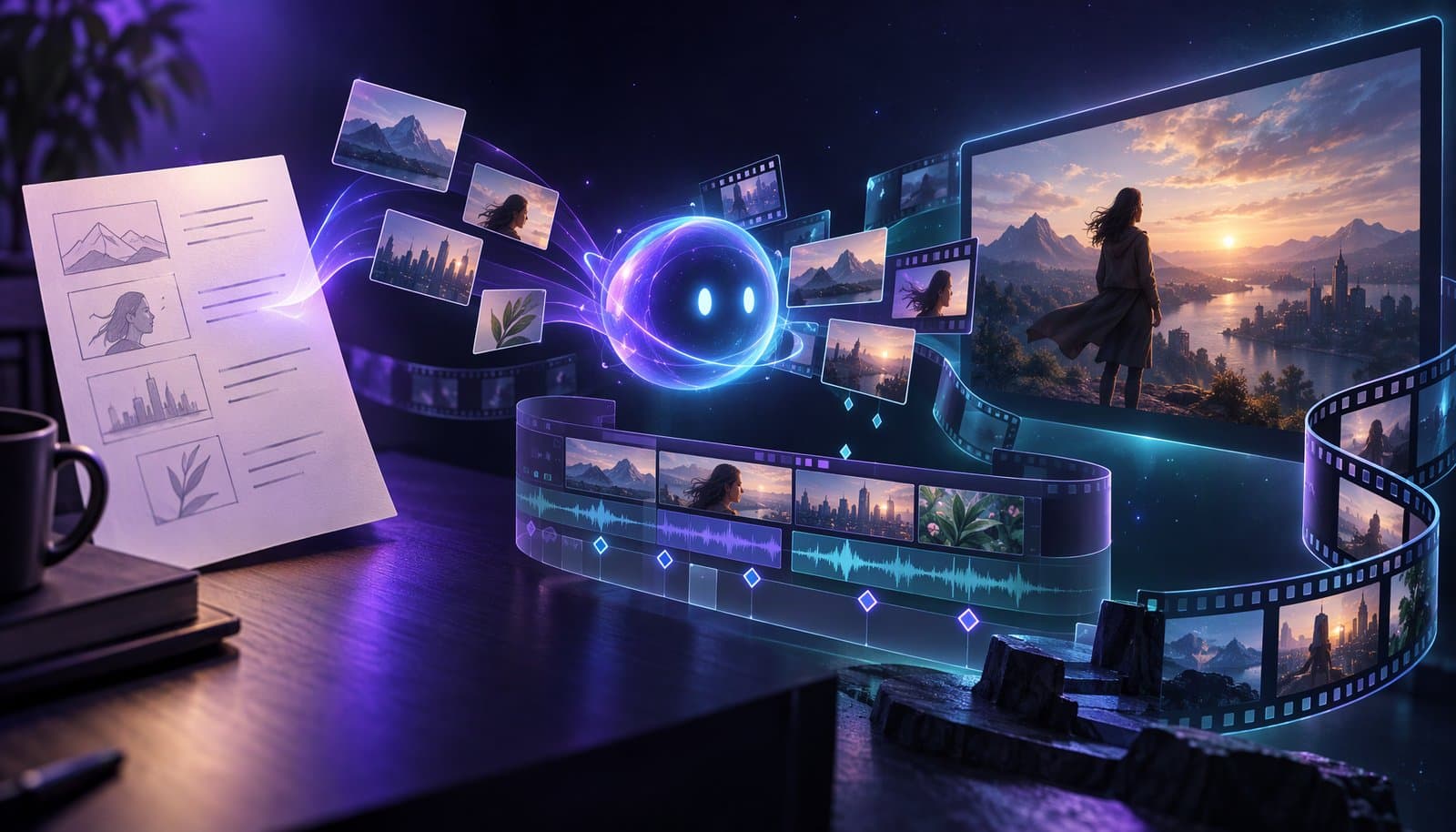
Storyteller is the prompt-to-video agent in Loopdesk: describe the film you want, pick the aspect ratio, duration and voice, and get a finished film with narration. Open the result in the Loopdesk editor and Aura and the timeline work on it as usual. Start from one of eight templates or your own idea; you stay the author at every step.
Most tools that turn text into video ask you to hand over the story: you type a line and the model decides the rest. Storyteller's position is different. The brief is yours, the tool helps you write a better one, and the film is yours to refine in the editor. This guide covers the templates, the composer, Improve prompt, how Storyteller compares with text-to-video generators and script-to-video tools, and where the limits are.
Product details current as of November 2, 2026.
What is Storyteller?
Storyteller is the prompt-to-video agent inside Loopdesk, the browser-based agentic video editor. The homepage puts it in six words: "Describe the film. Get the film." You write a brief, pick the format, length and voice, and Storyteller turns that brief into a finished film, narration included.
It lives in the same product as Aura, the editing agent, and that matters. A text-to-video generator is done when the clip renders. Storyteller hands you a film you can take into the editor and change by hand. The film is a starting point you own, not a sealed output.
The composer is deliberately small: a prompt box that reads "Describe the film you want…", an Improve prompt button, a submit arrow, setting chips for Aspect ratio, Duration and Voice, and a Captions toggle. Under it sit the eight templates and "Your stories", a list of every film you have made. The homepage shows it under Storyteller · Prompt to Video Generator.
Who is Storyteller for?
Storyteller is for people with a story and no crew: founders with a launch next week, teachers who explain the same idea every term, travel and history creators, consultants who talk to camera, and brands with audiences in several languages. The eight templates map onto those jobs. Picking one fills the prompt box with a sample brief that shows the shape; the words stay yours.
| Template | Who uses it | The brief that fits |
|---|---|---|
| Launch video | Founders, product marketers | The product, the problem it solves, the line to remember |
| Brand documentary | Small businesses, agencies | A founding moment, a turning point, what the brand stands for |
| Deep-dive explainer | Educators, B2B marketers | A question, the chain of cause and effect, what the audience already knows |
| Map story | Travel creators, journalists, teachers | Places in order and what happened at each |
| Painted history | History channels, museums, teachers | A period, person or event with a beginning, middle and end |
| Talking head | Coaches, consultants, course creators | The topic, the presenter's manner, and the key points to show as on-screen text |
| Photo to film | Photographers, families, event teams | A sequence of still moments and the narration that links them |
| Multilingual | Global brands, multilingual creators | Short, plain sentences that carry into another language |
How do you compose a film with Storyteller?
Composing a film takes seven decisions, and every one of them is yours.
- Start from a template or a blank brief. Pick a template to fill the prompt box with a sample brief, or type into the empty box, then edit until it describes your film, not a generic one.
- Write the brief like a director's note. Say what the film is about, who it is for, what the viewer should remember, what the first seconds show, and how it ends. Name the facts the narration must include and the ones it must not invent.
- Press Improve prompt if the brief is thin. It rewrites a short brief into a fuller, structured one, shows "Improving…" while it works, then offers an Undo control so you can revert.
- Choose the aspect ratio. Landscape 16:9 for a web page or a course; Vertical 9:16 for short-form feeds. If you need both, reframe the film later in the editor.
- Choose the duration. Quick clip (under 10 seconds), Short (10 to 30 seconds), Standard (30 seconds to 1 minute) or Long form (1 to 5 minutes). Match the length to the brief; Long form on a two-sentence brief leaves the agent to fill the time.
- Choose the voice and the captions. The Voice chip asks for a language, then an accent, then a gender. Listed languages include English, Spanish, Portuguese, French, German, Italian, Dutch, Polish, Turkish, Russian and Arabic; English accents include American, British, Australian, Canadian, Indian, Irish and Nigerian. The Captions toggle is on or off; off shows "No captions".
- Submit and open the film. Press the arrow. The status reads "Preparing your film…", then "Opening your film…", and Loopdesk opens the finished film, narration in place. It is listed under "Your stories" for later, and you can open it in the editor whenever you want to change it.
The brief is the whole game: give it a beginning, a turn and an ending, and the film has a structure to follow. Our guide to making a short film with AI covers story structure.
How does Improve prompt help you write a better brief?
Improve prompt turns a one-sentence idea into a structured brief without taking the idea away from you. Here is the example Loopdesk shows.
Before:
A bold, layered paper-collage style deep-dive explainer illustration detailing the science behind deep-space communication using lasers (optical communication), replacing traditional radio waves to send massive amounts of data from Mars to Earth.
After:
Create a bold, layered paper-collage deep-dive explainer for curious nonexperts about how deep-space optical communication can send massive amounts of data from Mars to Earth using lasers instead of radio waves. In the first 3 seconds, show a narrow beam crossing the vast gap and ask how light can carry a world of discoveries home. Follow data from encoding into laser light to detection on Earth, explaining bandwidth, precise aiming, distance and atmospheric obstacles; end on the promise and limits of this link.
The subject, the paper-collage look and the Mars-to-Earth framing survived the rewrite. The rewrite added what a one-liner lacks: an audience ("curious nonexperts"), an opening beat with a question in the first three seconds, a sequence to follow (encoding, laser light, detection), and an ending with a point of view ("the promise and limits of this link").
Copy that pattern when you write by hand. If the rewrite adds a claim you cannot stand behind, delete it. If it drops a detail you care about, put it back. If it changes your voice, press Undo. Improve prompt is a drafting tool, not an approval step.
How does Storyteller compare with text-to-video generators and script-to-video tools?
Storyteller sits beside two established kinds of text-to-video tool. Text-to-video generators answer "what does this shot look like?" Avatar-based script-to-video tools answer "who reads this script?" Storyteller answers "what is the film?" and then hands you the film to edit. Our script-to-video and text-to-video roundup names specific products.
| Question | Text-to-video generators | Avatar-based script-to-video tools | Storyteller in Loopdesk |
|---|---|---|---|
| What you give it | A prompt for one shot | A script, a presenter and a template | A brief for the whole film, plus format, length, voice and captions |
| What comes back | A short clip, often without narration | A presenter reading the script | A finished film with narration |
| Where you edit it | Usually a separate editor, after download | Usually inside the tool's own templates | The Loopdesk editor, with Aura and manual edits |
| Fits best when | You need one shot to fill a gap | You have a script and need a presenter | You have an idea and want a whole film you can still change |
The first category is a neighbor rather than a rival. Loopdesk's own generative AI video tools live in the Create panel: a single shot, image, music bed, sound effect or voice-over, generated in place when a film has a gap (the Create panel guide covers each tab). Storyteller produces the whole film; the Create panel fills whatever it is missing.
What can you do with the film in the Loopdesk editor?
Open the film in the Loopdesk editor and Aura and the timeline work on it as usual: refine the cut, add captions, reframe, export and schedule.
- Refine the cut with Aura. Type the change in plain English. Real prompts from the Loopdesk homepage include "Make the intro punchier", "Add bold captions", "Duck the music under speech" and "Brighten the dark shots". You can also move, trim or delete any clip by hand.
- Add captions in 108 languages. Loopdesk's auto-captions cover 108 languages, including 22 Indian languages and right-to-left scripts, with word-by-word animation and 51 fonts; the captions guide covers styling.
- Reframe for another platform. Aspect-ratio reframing turns a landscape master into a 9:16 vertical cut; see our explainer on video aspect ratios.
- Fill gaps from the Create panel. A missing shot, title card, music bed, sound effect or narration line in another language can be generated in place and dropped on the timeline.
- Export in 1080p or 4K. Every plan includes unlimited 4K exports, no watermark and full commercial use rights. Cloud renders run at 12× realtime, so a full 4K export lands in seconds, not hours.
- Schedule and measure. The film sits in the Content Library, the Distribution Calendar schedules publishing to your platforms, and Performance Analytics reports views, watch time, subscribers gained and engagement. See our guides to scheduling videos and cross-platform analytics.
What are the limits, and how do you use it responsibly?
Storyteller makes films from your words. It does not make documentary evidence, and it does not check your facts.
- Generated visuals are illustration, not evidence. A Storyteller film about a launch, a historical event or a route across a map is a rendering of your brief, not footage of the event. For what provenance data can and cannot prove, see C2PA Content Credentials for video.
- Check the narration before you publish. The narration is generated from the brief, so a wrong number in the brief becomes a wrong number spoken with confidence. Watch the whole film with the sound on and fix facts, names and dates on the timeline.
- Label AI-generated content. Say in the description or on screen that the film was AI-generated, especially for anything a viewer might take as a record.
- It draws on AI credits. Storyteller draws on your plan's AI credits, like Aura's AI operations and the Create panel. Loopdesk shows an estimated credit cost and remaining balance before a generation runs, and pay-as-you-go credits extend the monthly allowance; see the pricing page. There is no free plan or free trial.
- It runs in the browser only. Loopdesk needs an internet connection and has no offline mode or native app. Content is encrypted in transit and at rest, you can delete files at any time, and Loopdesk never uses your videos to train AI models.
- Some details are not published. Loopdesk does not publish how long Storyteller takes to generate a film, how many scenes it produces, or which visual styles it offers beyond the template names. If a detail matters, make a Quick clip first and judge for yourself.
Frequently Asked Questions
What is Storyteller in Loopdesk?
Storyteller is Loopdesk's prompt-to-video agent. It takes a written brief plus your choice of aspect ratio, duration and voice, and returns a finished, narrated film. You can then refine it in the Loopdesk editor with Aura, or edit the timeline by hand.
How long can a Storyteller film be?
The Duration chip offers four ranges: Quick clip (under 10 seconds), Short (10 to 30 seconds), Standard (30 seconds to 1 minute) and Long form (1 to 5 minutes). Pick the range that matches the amount of story in your brief.
Which languages and voices can Storyteller narrate in?
Narration is set in the Voice chip by language, accent and gender. Languages listed include English, Spanish, Portuguese, French, German, Italian, Dutch, Polish, Turkish, Russian and Arabic, and English comes in American, British, Australian, Canadian, Indian, Irish and Nigerian accents.
Can I edit a Storyteller film after it is made?
Yes. Open it in the Loopdesk editor, where Aura can refine the cut, add captions in 108 languages and reframe to 9:16. You can also change any clip by hand, export in 1080p or 4K and schedule publishing.
Does Storyteller cost extra, or is it included in my plan?
Storyteller draws on the AI credits in your Loopdesk plan, like other AI operations. Loopdesk shows an estimated credit cost and your remaining balance before a generation runs, and you can buy pay-as-you-go credits beyond the monthly allowance.
Is a Storyteller film real footage?
No. Storyteller generates visuals and narration from your brief, so the film is an illustration of what you wrote, not a record of an event. Check the narration for accuracy, label the film as AI-generated, and never present it as evidence.
Ready to compose your first film? Open Loopdesk, pick a template or write your own brief, and refine the result with Aura on the timeline.