
Generate What You're Missing: AI Video, Images, Music, Sound Effects and Voice-Overs in Loopdesk
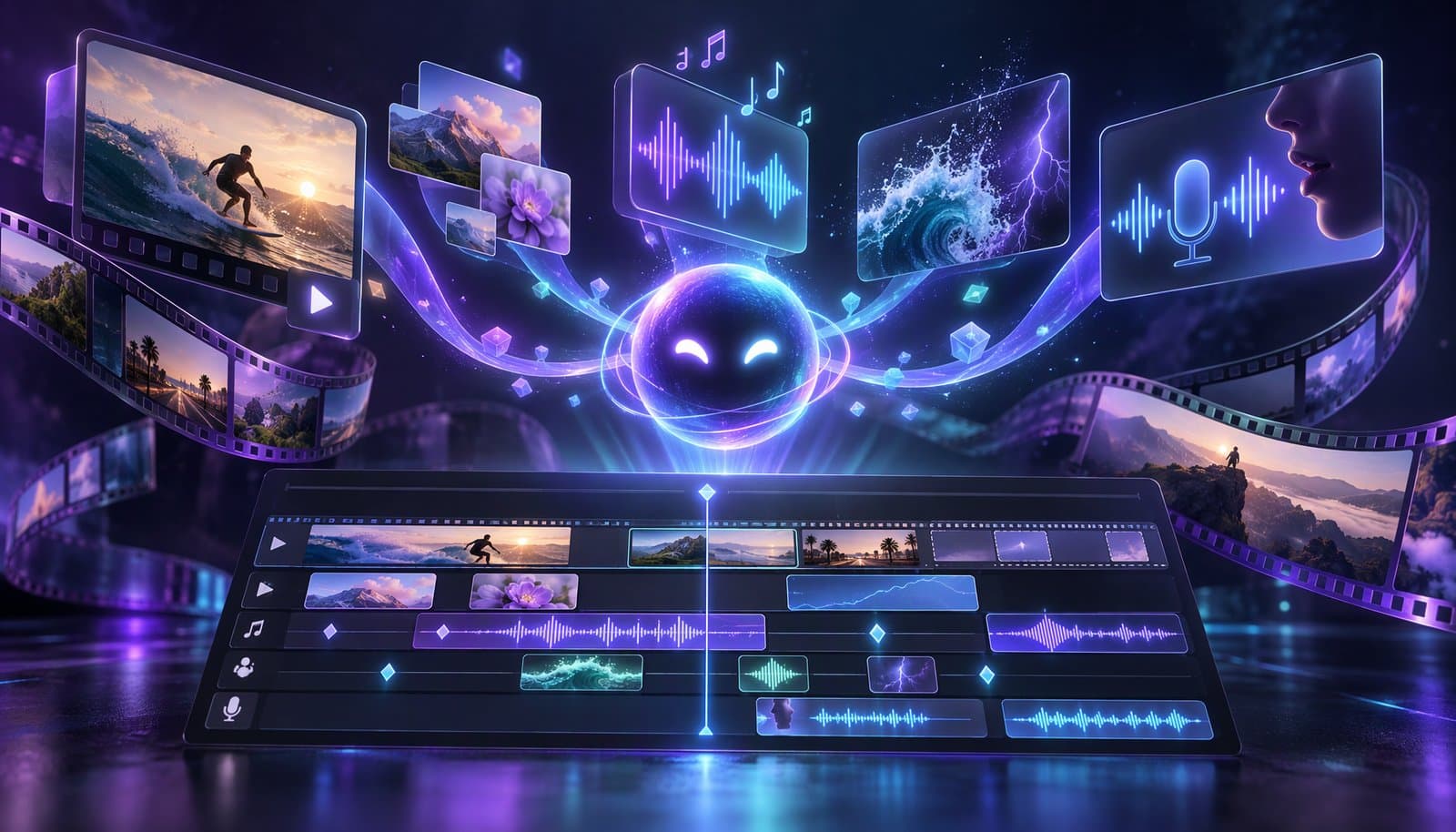
Loopdesk's Create panel generates video, images, music, sound effects and voice-overs inside the editor, next to the footage you already have. Each tab takes a prompt and a few settings, shows the credit estimate before you run it, and puts the result on the canvas and in your library, ready to place on the timeline like any other clip. It is built for the gaps footage leaves, not as a replacement for filming.
Every edit has gaps: the warehouse you never filmed, the thumbnail that is still a frame grab, the customer who wants the same video in Spanish by Friday. Each one used to mean leaving the editor, exporting, importing and hoping the aspect ratio matched. We built the Create panel to close that loop. Here is what you control in each tab, how a B-roll gap gets filled, what it costs, and when to film instead.
Product details current as of November 3, 2026.
What is new in Loopdesk?
As of November 2026, the Loopdesk editor has a Create panel with five tabs: Video, Image, Music, SFX and Voice. The generative section of the homepage puts it in one line: "B-roll, images, music, sound effects, and voice-overs, generated in place with the best models, whenever your footage has a gap."
All five tabs work the same way. A prompt box suggests a sample prompt (press Tab to accept it). Settings sit under the prompt, with a credit estimate and your remaining balance shown before you click Generate. A Generations list with a search box and type filters keeps everything you have made. The result appears on the editor canvas and in your library, and you place it on the timeline like any other clip.
The Create panel is not Storyteller, which turns a whole brief into a finished film with narration (covered separately), and it is not a standalone text-to-video site (this roundup names those). Everything it makes is generative AI video, image or audio from your prompt, for your cut.
Why generate inside the editor instead of a separate app?
Because the gap is on the timeline, and the timeline knows things a separate app does not.
The settings match the project. Music has a "Fit video" length that matches your video, 54 seconds in the panel's example, and the Video and Image tabs let you set the aspect ratio your project uses.
There is no round trip, and Aura is right there. The asset is in your library the moment it is ready, and the next prompt, say "Duck the music under speech", is one box away.
You audition in context. The SFX tab generates several variations to try on the transition itself.
Your material stays put. Loopdesk never uses your videos to train AI models, content is encrypted in transit and at rest, and you can delete files anytime.
One trade-off applies to all of Loopdesk: it runs in the browser and needs an internet connection, with no offline mode or native app.
What can you generate, and what do you control?
Five generators in one panel. The settings below are the example values the panel shows.
| Tab | What you give it | Settings you control | The gap it fills |
|---|---|---|---|
| Video | A prompt; optional first frame, reference image or source clip | Aspect ratio (16:9), duration (8s), resolution (720p), Sound on or off | B-roll, cutaways, openers |
| Image | A prompt; optional source image to edit | Aspect ratio (16:9), resolution (2K), count | Thumbnails, title cards, product shots |
| Music | A prompt plus style tags | Length, including "Fit video"; Instrumental | A bed that ends when the video ends |
| SFX | A prompt | Length (Auto); number of variations | A whoosh on a transition, a crowd swell |
| Voice | A pasted script | Voice; language · accent · gender; Pace; Translate… and Language versions… | Narration, a language version |
Video
The Video tab is text to video: describe the shot and the clip lands on your timeline with sound. Inputs: the prompt plus the optional First frame, Reference and Source clip. Settings: aspect ratio (16:9 in the example), duration (8s), resolution (720p) and Sound on or off.
The sample prompt reads like a shot list, which is how to write one: "Slow push-in on a coffee cup at a sunlit desk, warm window light, steam rising from the cup".
Uses:
- B-roll over a line the camera never covered, like the warehouse you never filmed. Our A-roll, B-roll and C-roll explainer defines the terms.
- A short insert over a jump cut left by silence removal.
- An opener before a title card.
A generated clip illustrates; it is not a record of a real place.
Image
The Image tab makes stills, or edits one you already have. Inputs: a prompt and an optional "Source image to edit". Settings: aspect ratio (16:9), resolution (2K) and count.
Sample prompt: "Minimal product shot of a matte black mug on folded paper, soft top light, lots of negative space". The negative space is the point: a thumbnail needs room for a title.
Uses:
- Thumbnails with options: set the count above one and pick the version that reads at phone size.
- Title cards and section breaks for a long explainer.
- A product shot you never staged, or a quick edit of a photo you did take: load it as the source image and describe the change.
Music
The Music tab takes a prompt plus style tags: cinematic, lo-fi, upbeat, ambient, corporate and dramatic. Settings: Length, with a "Fit video" option that matches the video's length, and an Instrumental option. The result is an original track that fits your cut.
Sample prompt: "Warm lo-fi beat with mellow Rhodes keys, soft vinyl crackle, brushed drums, steady 85 BPM". A tempo is worth more than an adjective.
Uses:
- A bed that ends when the video ends, not a three-minute song you fade out.
- An instrumental bed under a narrator, followed by "Duck the music under speech" as an Aura prompt.
- A dramatic or cinematic build for a trailer.
Our LUFS and loudness guide explains where speech and music should sit.
Sound effects
The SFX tab takes a prompt. Settings: Length (Auto) and the number of variations, three in the example, to audition in place.
Sample prompt: "Soft paper whoosh, close mic, quick and airy". Material, mic distance, speed, texture.
Uses:
- Transitions: a whoosh as a title card lands, a click on a product demo.
- Ambience: a crowd swell under an event recap, room tone under a cutaway you generated with Sound off.
- Emphasis: a low hit under a statistic, a riser into a reveal.
Generate three, drop each on the cut, keep the one that lands.
Voice
The Voice tab turns a script into a voice-over. Paste the script (a character count is shown), then choose Voice (Narrator, in the example), language · accent · gender (English · American · Male) and Pace (1×). Two actions sit alongside: "Translate…" and "Language versions…". Sample script: "Every big dream starts with one small step. Today, that step is yours."
Uses:
- Narration for a faceless explainer, captioned in any of Loopdesk's 108 caption languages.
- A language version of the same cut. Our subtitles vs AI dubbing guide helps you choose, and a fluent speaker should check names and terminology.
- A pickup when one line changes after the edit is locked, regenerated with the same Voice setting.
A synthetic narrator is still synthetic: label it where your platform or audience expects it.
How do you fill a gap with generated B-roll?
The loop for the most common gap, a talking-head line with nothing to show:
- Find the gap. Park the playhead where the A-roll needs cover and note how long the line runs and the project's aspect ratio. If the line is buried in a long take, ask Aura to find it: "Find the part where the demo crashes" is a real prompt.
- Open the Create panel and choose Video. Press Tab to accept the suggested prompt, or write your own.
- Write the shot, not the idea. Camera move, subject, setting, light, one moving element. To start from something you already have, add a first frame, a reference image or a source clip.
- Set the shape and check the cost. Choose the aspect ratio, duration, resolution and whether Sound is on. Read the credit estimate and your remaining balance, then click Generate.
- Place it. Drag the new clip from your library over the gap, trim it to the line and keep the speaker's audio underneath. Or delegate: "Add B-roll over the demo" is an Aura prompt.
- Finish and ship. Ask Aura for captions, a 9:16 version or a music duck, export at 1080p or 4K with no watermark, then schedule it from the Distribution Calendar.
What does generation cost?
Generation draws on AI credits, like every AI operation in Loopdesk. The panel shows an estimated credit cost and your remaining balance before you run anything. The number that matters is the on-screen estimate for the generation you are about to run, not a price list.
Credits come with the plan:
| Plan | Price | Monthly AI credits | Storage | Also includes |
|---|---|---|---|---|
| Creator Lite | $19/month, or $15/month billed annually | Worth US$5 | 25 GB | Unlimited projects, commercial use, no watermark, pay-as-you-go credits |
| Creator Pro | $39/month, or $31/month billed annually | Worth US$25 | 100 GB | Everything in Lite, plus access to all AI models, premium AI agents, advanced AI editing operations, higher AI throughput and priority support |
| Enterprise | Custom | Custom credit allocation | Up to 2 TB | Team workspace, role-based permissions, real-time collaboration, SSO, dedicated support, SLAs |
Both Creator plans sell pay-as-you-go credits beyond the monthly allowance, and Creator Pro's access to all AI models and higher AI throughput matter most if you generate often. There is no free plan and no free trial; the pricing page has the current numbers. Every plan exports at 1080p and 4K, with unlimited 4K exports, no watermark and full commercial use rights.
When should you film instead of generate?
Film when the thing exists and you can get a camera to it: your face, your product, your customer saying the words. Real footage is evidence; generated footage is illustration. Film when the specific matters, too: generation gives you a convincing kitchen, not yours.
Generate when the gap is a mood, a metaphor, a cutaway, a title card, a music bed, a sound, or a narration you would otherwise never record.
Never generate to stand in for something you claim happened. Generated media is not evidence of anything real. Label AI-generated content where your platform or audience expects it; our C2PA Content Credentials explainer covers how provenance records travel with a file. Expect to iterate; the Generations list keeps every attempt.
Frequently Asked Questions
Do I need a separate app to generate B-roll, music or voice-overs for a Loopdesk edit?
No. The Create panel inside the Loopdesk editor has five tabs: Video, Image, Music, SFX and Voice. Each takes a prompt and a few settings, and the result appears on the canvas and in your library, ready to place on the timeline like any other clip.
How long can a generated video clip be?
Duration is a setting in the Video tab, alongside aspect ratio and resolution; the example the panel shows is 8 seconds. Generated clips are meant to cover gaps in real footage. For a whole film from a brief, use Storyteller instead.
Can I generate a voice-over in another language?
Yes. In the Voice tab you paste a script and choose the voice, language, accent, gender and pace. The Translate and Language versions actions produce versions in other languages. Have a fluent speaker check names and terminology before you publish.
What does a generation cost?
Every generation draws on AI credits. The panel shows an estimated credit cost and your remaining balance before you click Generate. Creator Lite includes monthly credits worth US$5, Creator Pro US$25, and both plans offer pay-as-you-go credits beyond the allowance.
Can I use generated video, music and voice-overs commercially?
Every Loopdesk plan includes full commercial use rights on what you make in Loopdesk and no watermark on exports. Label AI-generated content where a platform, client or law requires it, and never present a generated clip as a record of something real.
Is AI-generated footage evidence that something happened?
No. A generated clip, image or voice is an illustration made from a prompt. Use it for cutaways, titles, beds and narration, and film anything you present as real. Content credentials can record how a file was made, but they do not make a generated scene true.
Got a gap in your cut? Open Loopdesk and generate the shot, the bed, the sound or the voice-over right where it is missing.